
Keywords Autosuggests
The Keywords Autosuggest tool offers autocomplete options for the words that users type into app store search bars.
Use this tool to find all possible variations of terms your app may be found with and add them to your app's semantic core. Incorporating these suggestions can significantly increase your app's visibility.
Why to use: Get all the suggestions for the keywords your app is searched with.
Goal: Identify and collect autocomplete keyword variations that users search for in app stores.
Time: Up to 5 minutes.
1. Add a Keyword
In the search bar, type a keyword to generate autosuggestions.
Select the language you need based on your app’s localization from the dropdown list. The languages most popular in the country you selected above will appear at the top of the list.
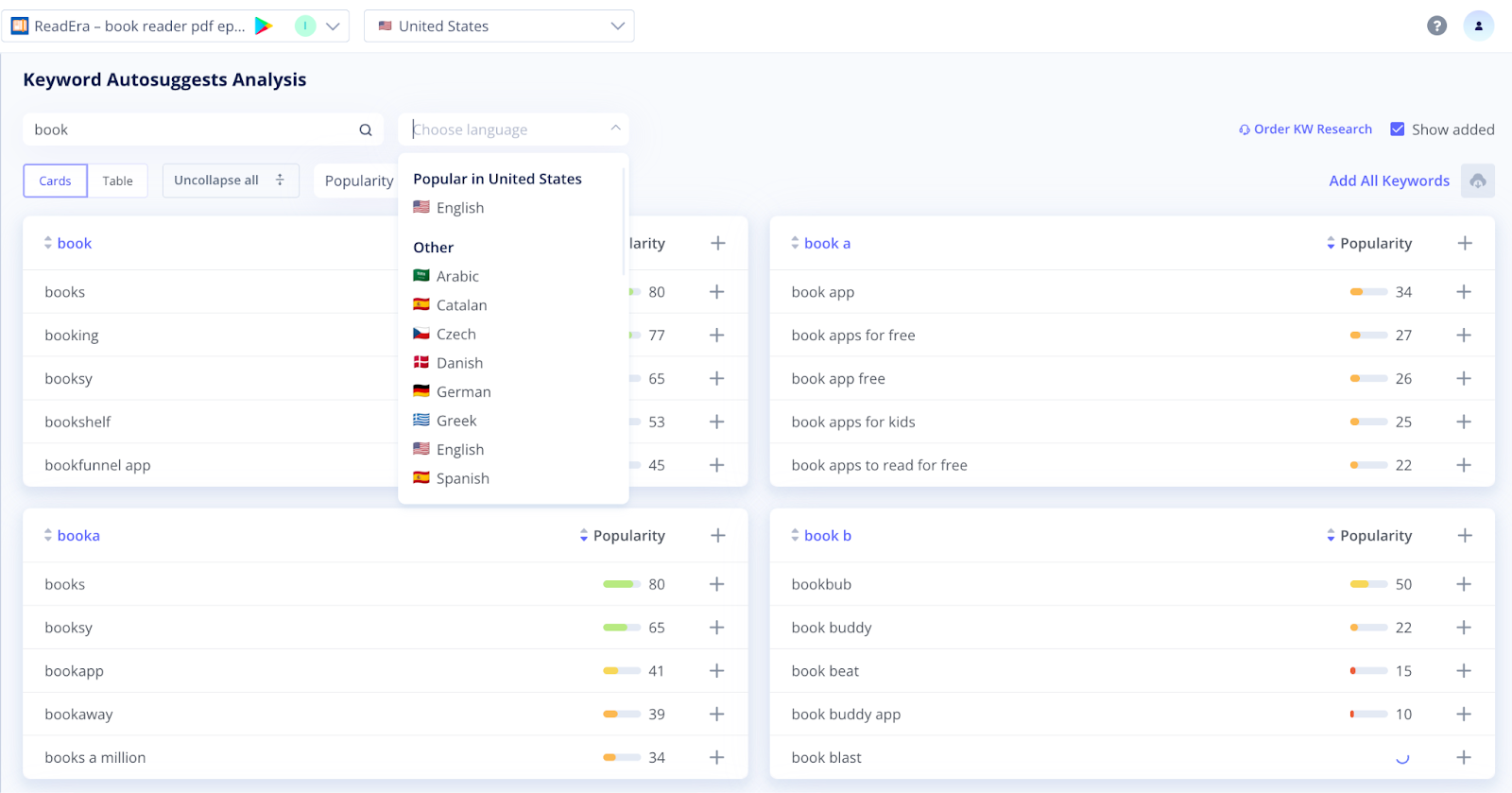
Tip: For accurate results, ensure the selected country and language match the keyword's language. This helps reflect real user searches in your target market.
2. Adjust Display Settings
Next, choose how you want your keyword data to be displayed. You can switch between Card and Table modes.
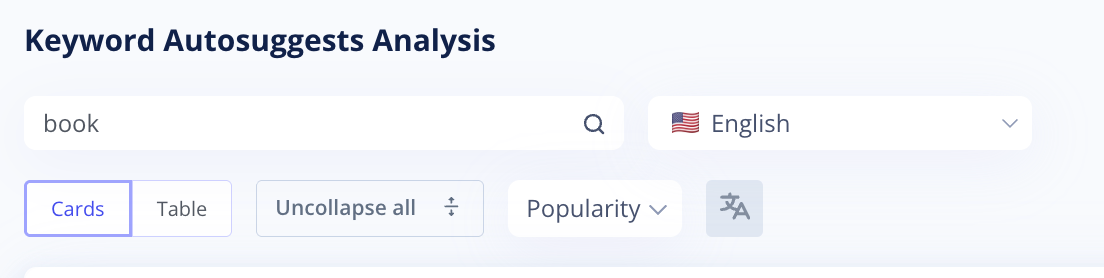
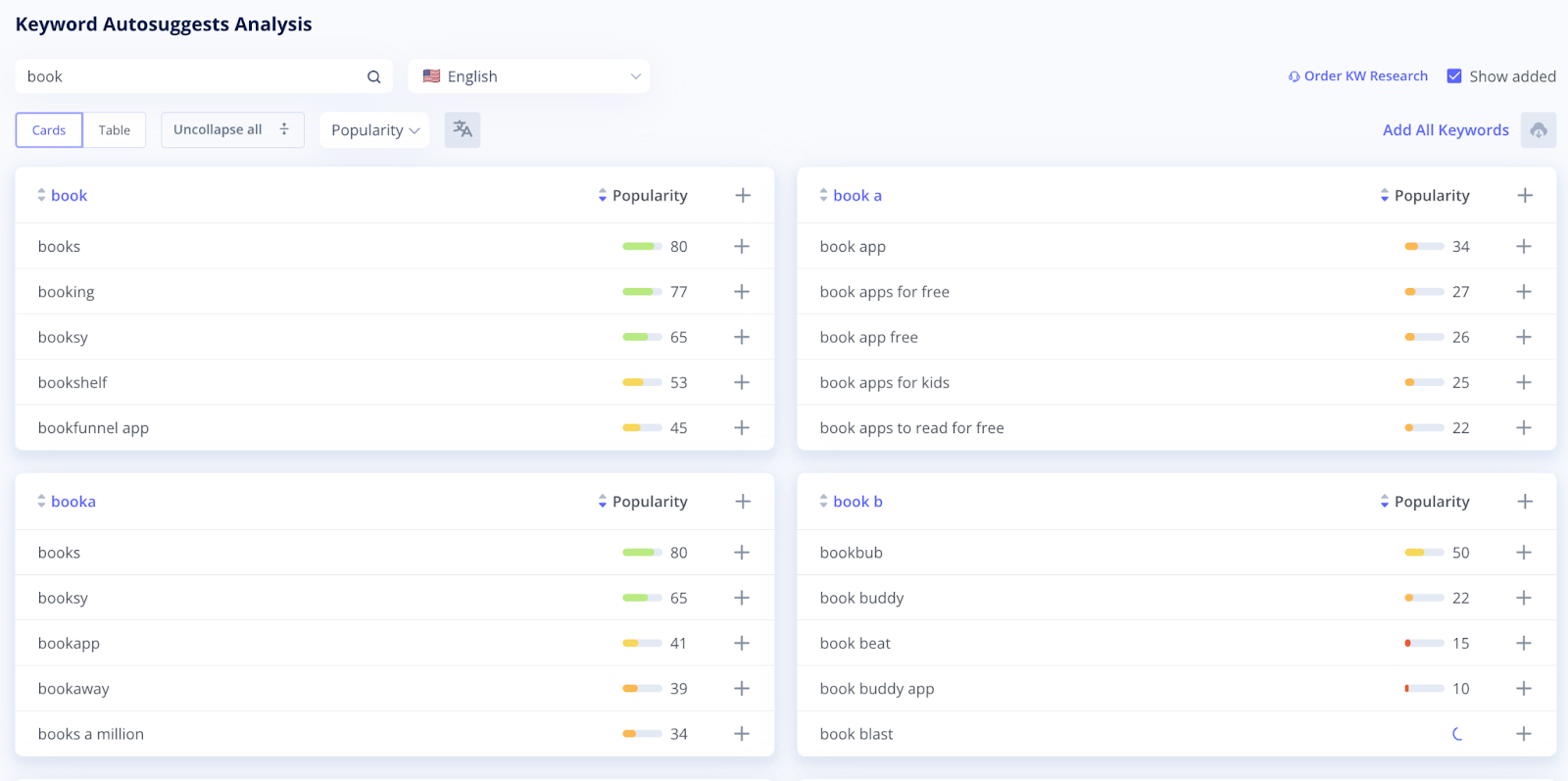
In Card mode, you can expand all blocks by clicking Uncollapse All, or expand them individually using Show More. Also, you can choose a popularity range. Set the parameters manually or pick one of the three preset options.
When you switch to Table mode, a set of filters becomes available:
- Popularity
- App Rank
- Competition in Top 10
- Estimated Daily Impressions
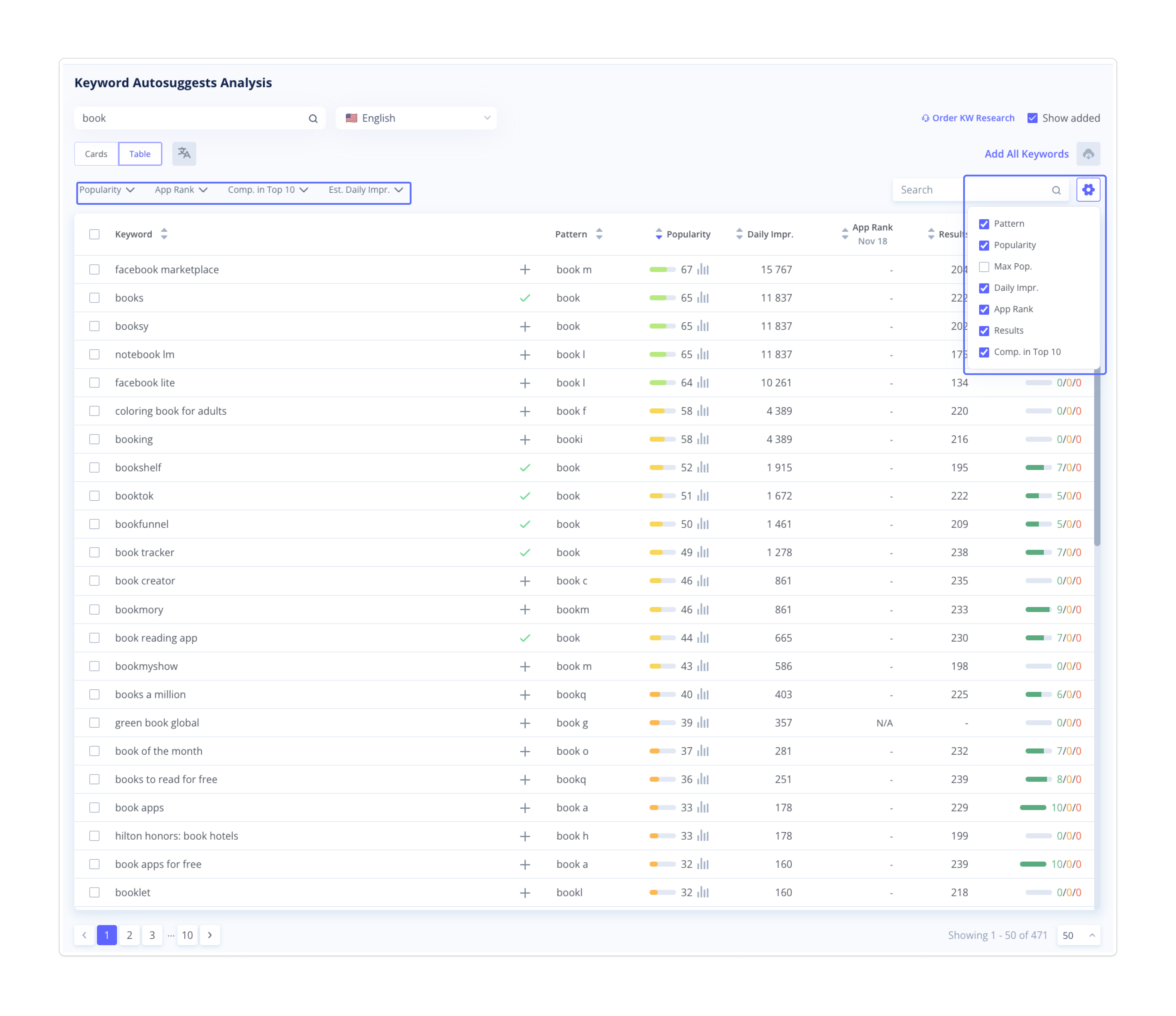
These display settings help you organize and analyze your keyword suggestions more effectively.
3. Examine Keyword Autosuggestions in Card Mode
Popular Keyword Autosuggestions
The first block contains the most popular autosuggestions for the chosen keyword. These suggestions help you discover new, relevant search terms that users actively type in the store.
You can sort them alphabetically or by popularity (ascending or descending). Add all keywords from this section to Tracking or select particular ones. If you check the Show Added box, the keywords added to Tracking will be shown with a green checkmark for easy reference.
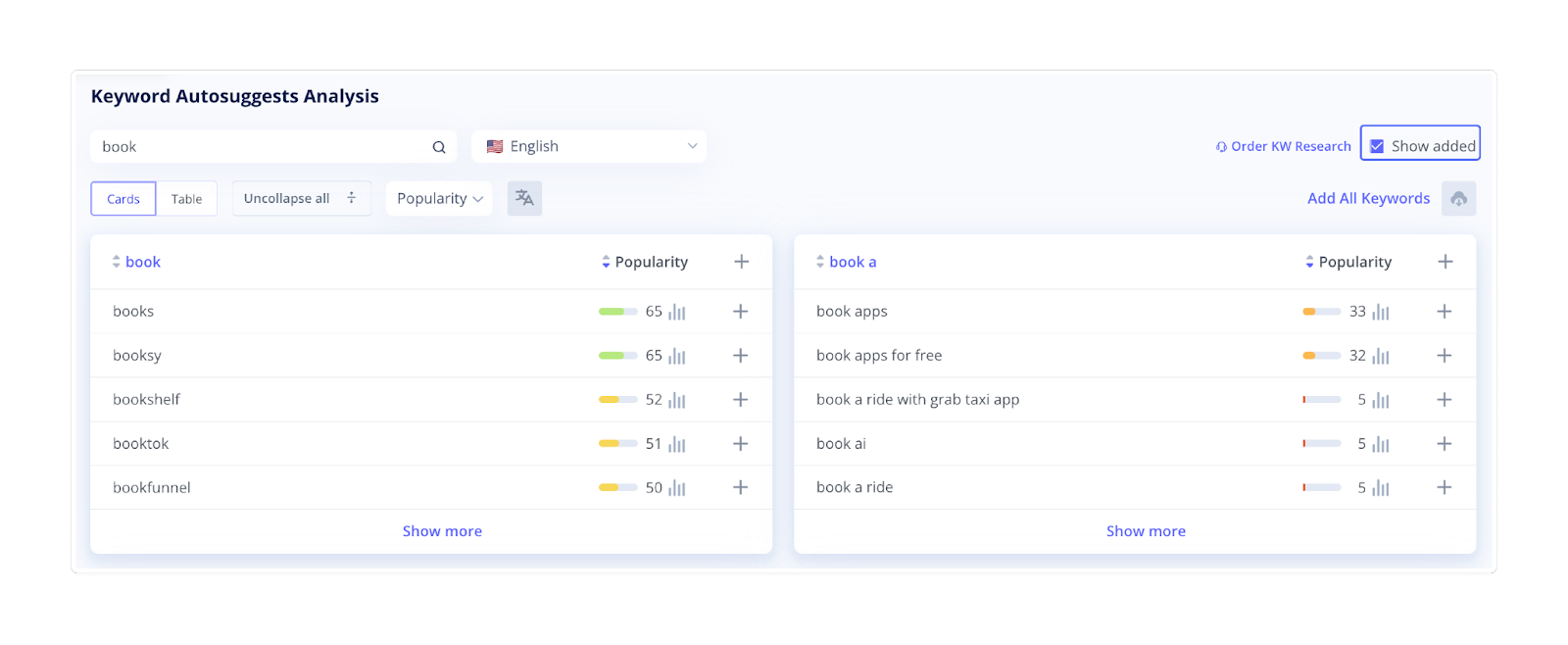
Autosuggestions in Alphabetical Order
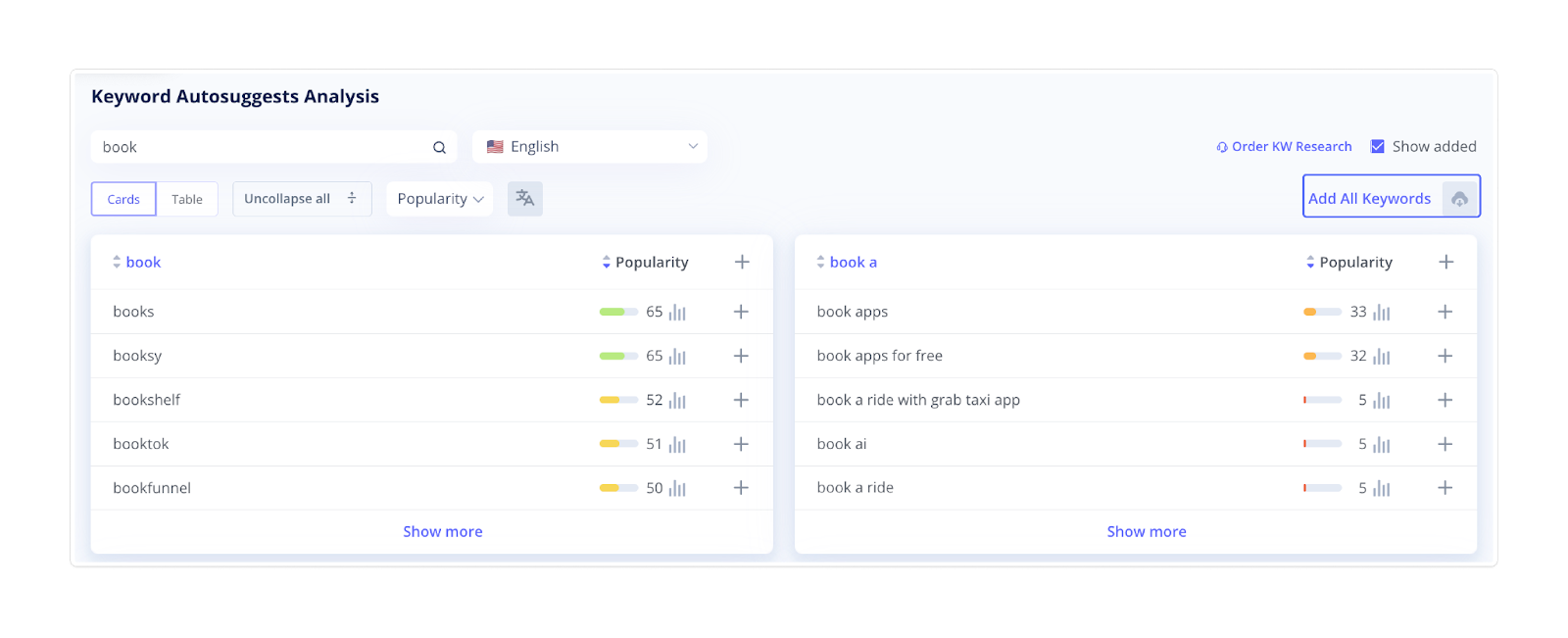
Next, examine autosuggestions for each letter of the alphabet. Expand blocks to see all available options and the popularity of each keyword. Add the most relevant keywords for your app's search intent to Tracking to enrich your semantic core.
You can add keywords individually, by block, or use the bulk adding option by clicking Add All Keywords. Also, all keyword autosuggestions can also be exported to a .csv file for further analysis or reporting.
4. Explore Table Mode
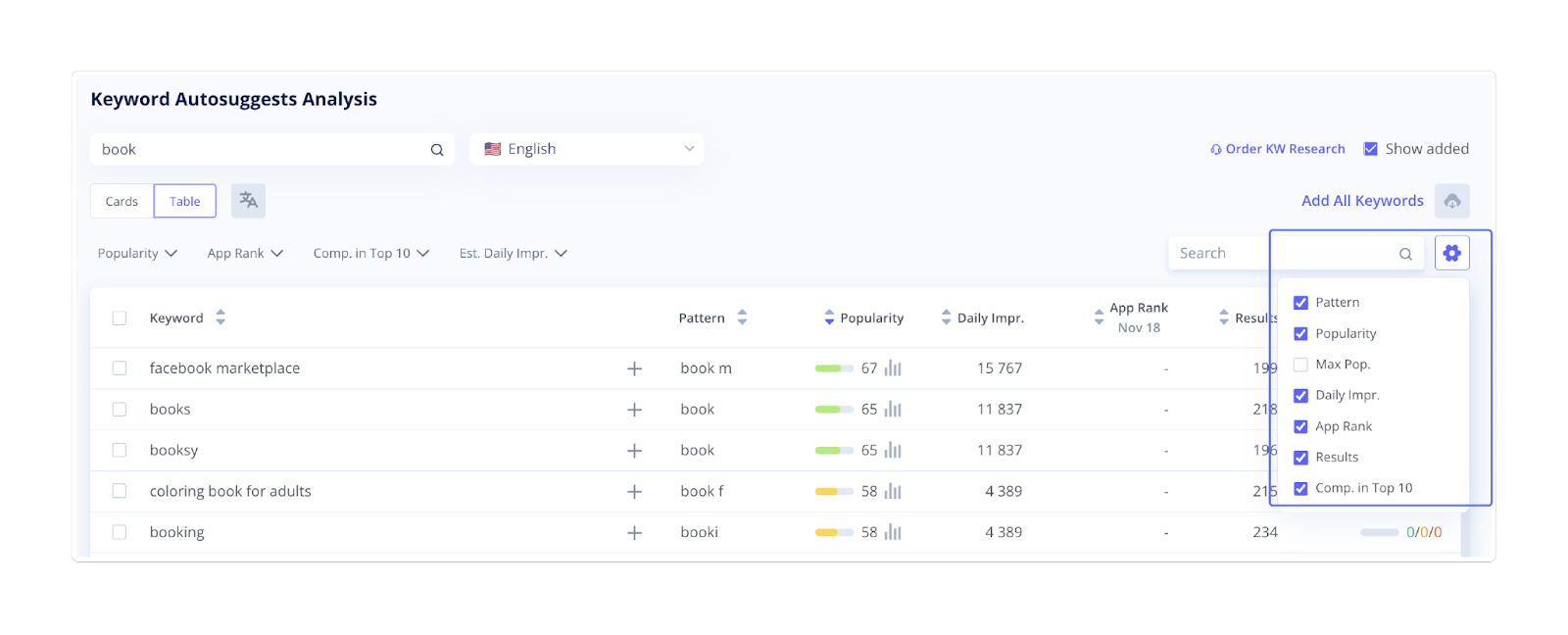
You can switch to Table mode to analyze all keyword autosuggestions in a structured, data-driven format. This view helps you compare and prioritize keywords using multiple performance metrics displayed in sortable columns.
Each column provides key information to guide your keyword selection:
- Keyword lists all autosuggestions generated for your search term.
- Pattern displays the root or repeating phrase in the keyword group.
- Popularity indicates how frequently users search for the keyword in the store and contains the color bar for quick visual reference.
- Daily Impressions shows how many daily views a keyword may generate, helping you assess its potential traffic.
- App Rank displays your app's ranking for that keyword.
- Results shows the number of apps competing for this keyword.
- Competition in Top 10 illustrates how many of your tracked competitors appear in the Top 10 search results for that keyword.
Use the gear icon in the top right corner of the table to customize which columns are displayed. You can enable or disable metrics like Popularity, App Rank, or Competition to focus on the data that matters most.
At the bottom of the table, navigation buttons allow you to browse through multiple pages of keyword results. You can also adjust how many entries appear per page.
Once you're done with Keywords Autosuggest, move on to Related Keywords to expand your keyword list with additional relevant terms that users might search for within your app's category.