
Metadata Keywords
The Metadata Keywords tool collects search terms directly from your and your competitors' app metadata.
These are the terms from the app store listings, and they play a key role in how the app is discovered. By analyzing and comparing them, you can find the most effective metadata-based search terms and replenish your apps' semantics, specifically metadata.
Why to use: Extract keywords from your and competitors' metadata to strengthen your app's visibility.
Goal: Monitor the metadata keywords used by competitors in your niche.
Time: Up to 5 minutes.
Use this tool to identify high-value terms competitors rely on, adopt proven strategies, and keep your metadata aligned with current ASO trends. Below is a step-by-step guide on how to use it effectively.
1. Filter Metadata Keywords
Filtering and sorting options in this tool are similar to those in Recommended Keywords. You can filter results by:
- Popularity
- Language
- App Rank
- Competition in Top 10
- Difficulty
- Estimated Daily Impressions
- Noncompetitors in Top 10
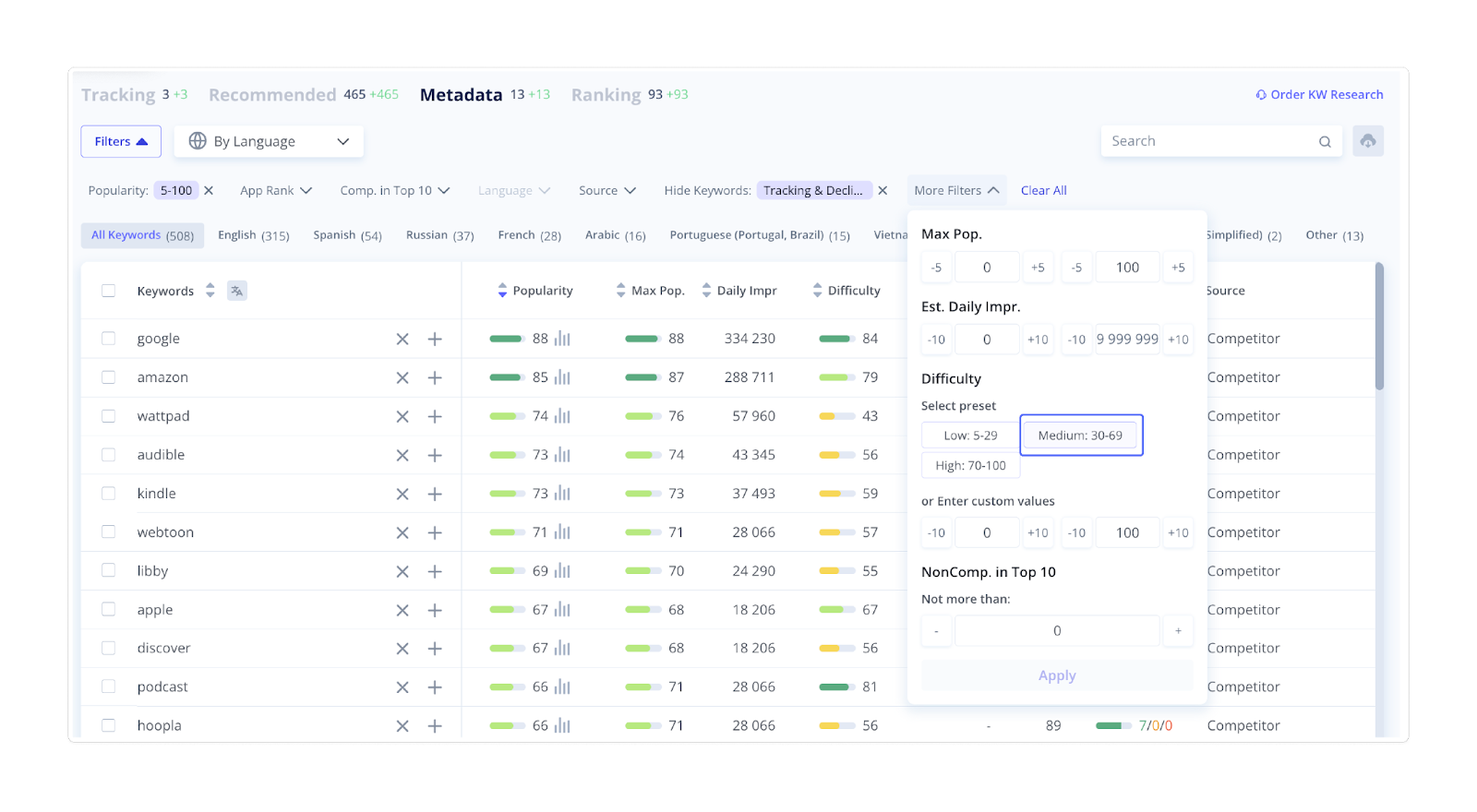
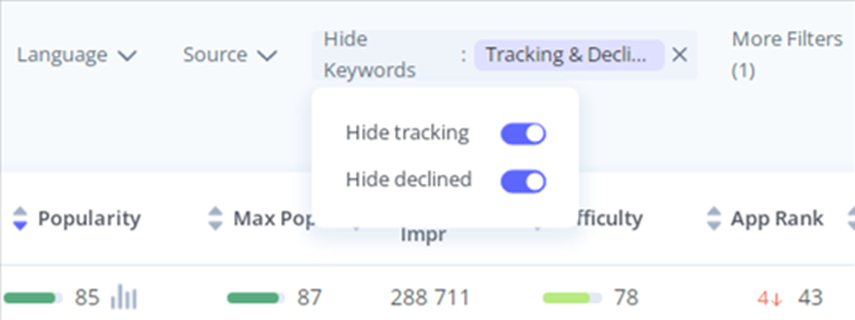
However, this tool includes one additional filter – Hide Keywords. This filter lets you exclude from the list any keywords you've already added to Tracking or marked as declined, so you can focus only on new options.
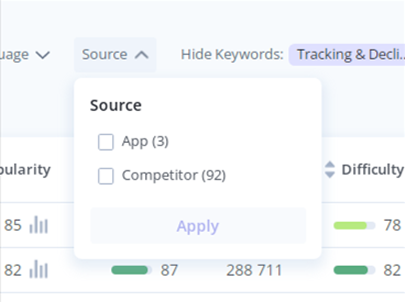
The Source filter is also different. It allows you to view keywords from your own metadata separately from those extracted from your competitors' apps.
2. Study Keyword Metrics
The metrics table here is also similar to the one in Recommended Keywords. You can evaluate each keyword by:
- Difficulty – how hard it is to rank for this keyword
- Popularity – how frequently users search for it
- Estimated Daily Impressions – how many times users are expected to see this keyword per day
- App Rank – your app's current ranking position for the keyword
- Results – total number of apps shown for this keyword
- Competition in Top 10 – how many of the top-ranked apps are your direct competitors, indirect competitors, or noncompetitors
- Source – where the keyword was taken from (your app or competitors' metadata)
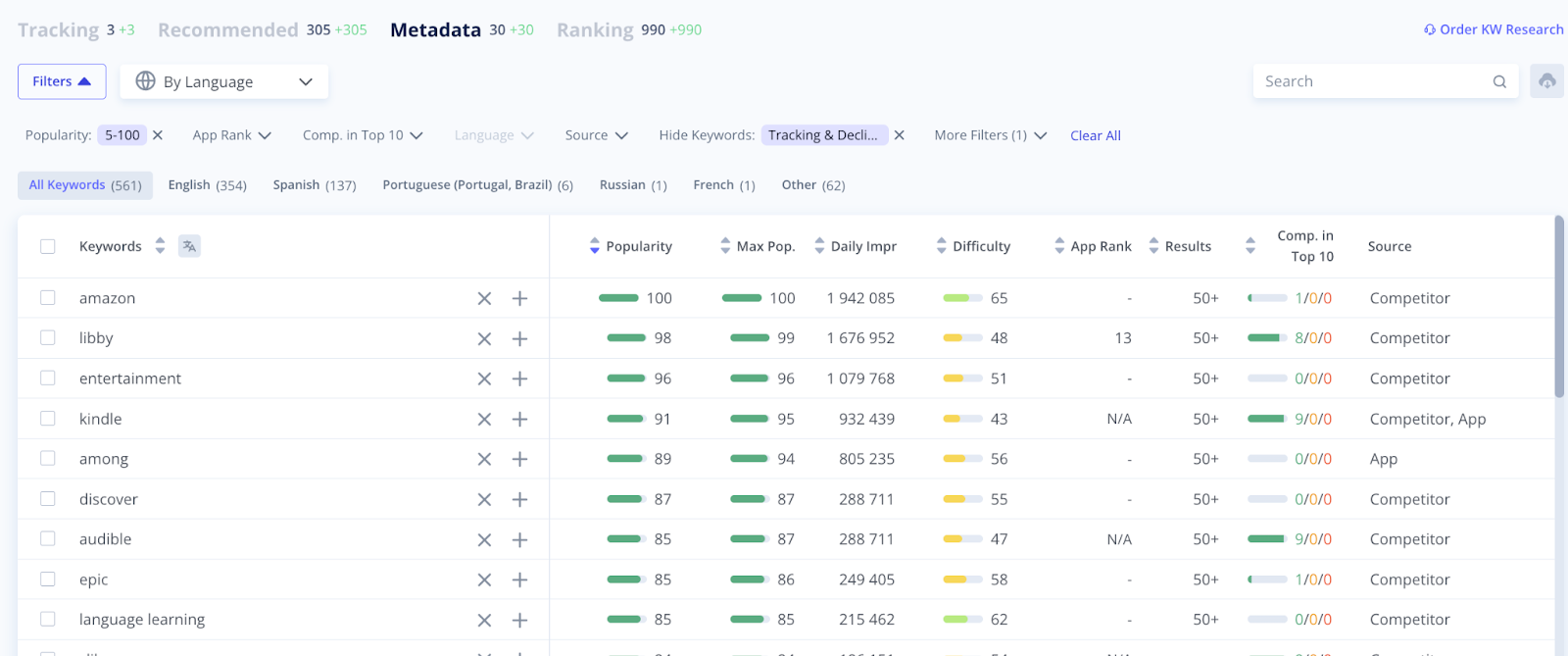
These metrics help you understand how competitive and valuable each keyword is. For example, a keyword with high popularity but moderate difficulty can be a great opportunity to improve your app's visibility.
Use these insights to decide which keywords to add to your Tracking Keywords and which ones to skip for now.
3. Add or Decline Keywords
When you find relevant keywords, click the plus icon (+) to add them to your Tracking Keywords list. To reject a keyword, click the cross icon (×).
It's important to be selective: only add keywords that are closely related to your app's content, features, or target audience. This helps you maintain a high-quality, focused semantic core.
4. Keep Metadata Keywords Updated
If you add or remove apps from your Competitors list, the Metadata Keywords section updates automatically. Return to this tool regularly to explore newly extracted keywords and ensure your semantic core reflects the most recent ASO trends.
The Metadata Keywords tool helps you understand how your app and competitors use key search terms in their listings. By adding the most relevant keywords to your Tracking Keywords tool, you can continuously refine your metadata and improve your app's discoverability in the store.
Your next step is to move to the Ranking Keywords section, where you can see all the keywords by which your app and your competitors currently rank for.