
Recommended
Recommended Keywords is a collection of all relevant search terms for your app found by Asolytics algorithms. It includes keywords in different languages extracted from your app's metadata, competitors' text assets (using Competitor Intelligence algorithms), and keyword suggestions.
Why to use: Search for new, effective keywords to build your app’s semantic core.
Goal: Automatically collect a list of relevant keywords from multiple sources.
Time: Up to 10 minutes.
Use this tool to get new keywords and optimize your app's text assets for better visibility.
Overview
Near the title of the Recommended tab, you'll see:
- Total number of keywords (in black).
- Changes: Red numbers (e.g., -1) show the number of dropped keywords, and green numbers (e.g., +2) show recently added ones.
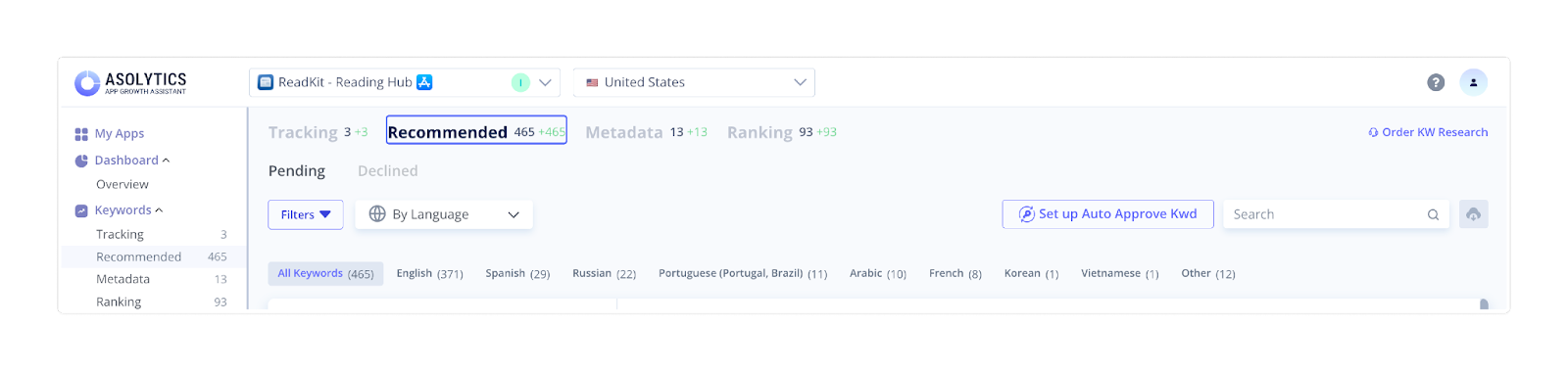
The Recommended Keywords section includes two tabs: Pending and Declined. The first one contains all the keywords awaiting your decision. You can either add them to the Tracking Keywords or mark them as irrelevant. The Declined list includes all the terms you've rejected.
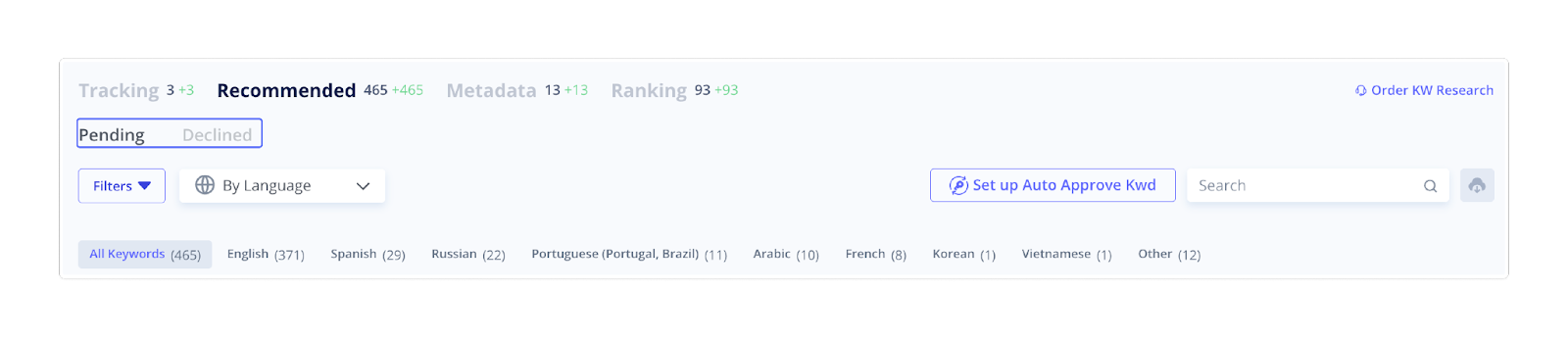
How to Use the Recommended Keywords Tool
1. Filter Recommended Keywords
The easiest way to work with keywords in the Pending tab is by filtering them according to specific criteria. Filters help you focus on the most promising keywords and analyze their potential more effectively.
Main filters include:
- Popularity
- App Rank
- Competition in Top 10
- Language
- Source
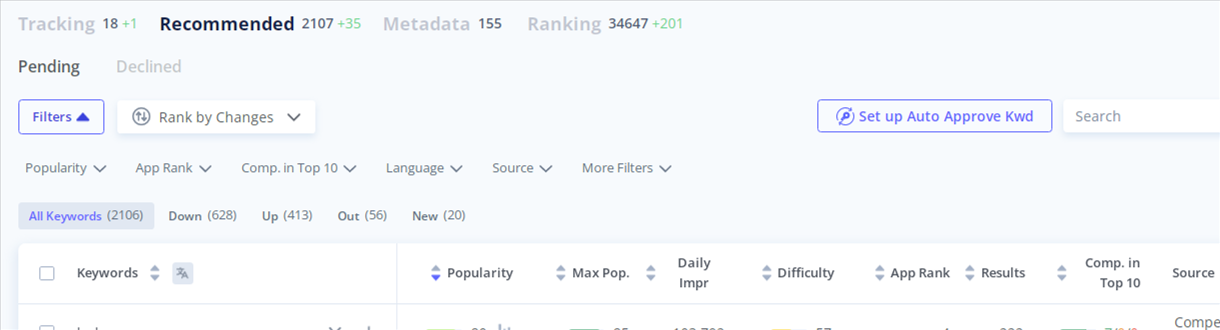
Clicking More Filters gives access to additional parameters, such as:
- Max Popularity
- Estimated Daily Impressions
- Difficulty
- Non-Competitors in Top 10
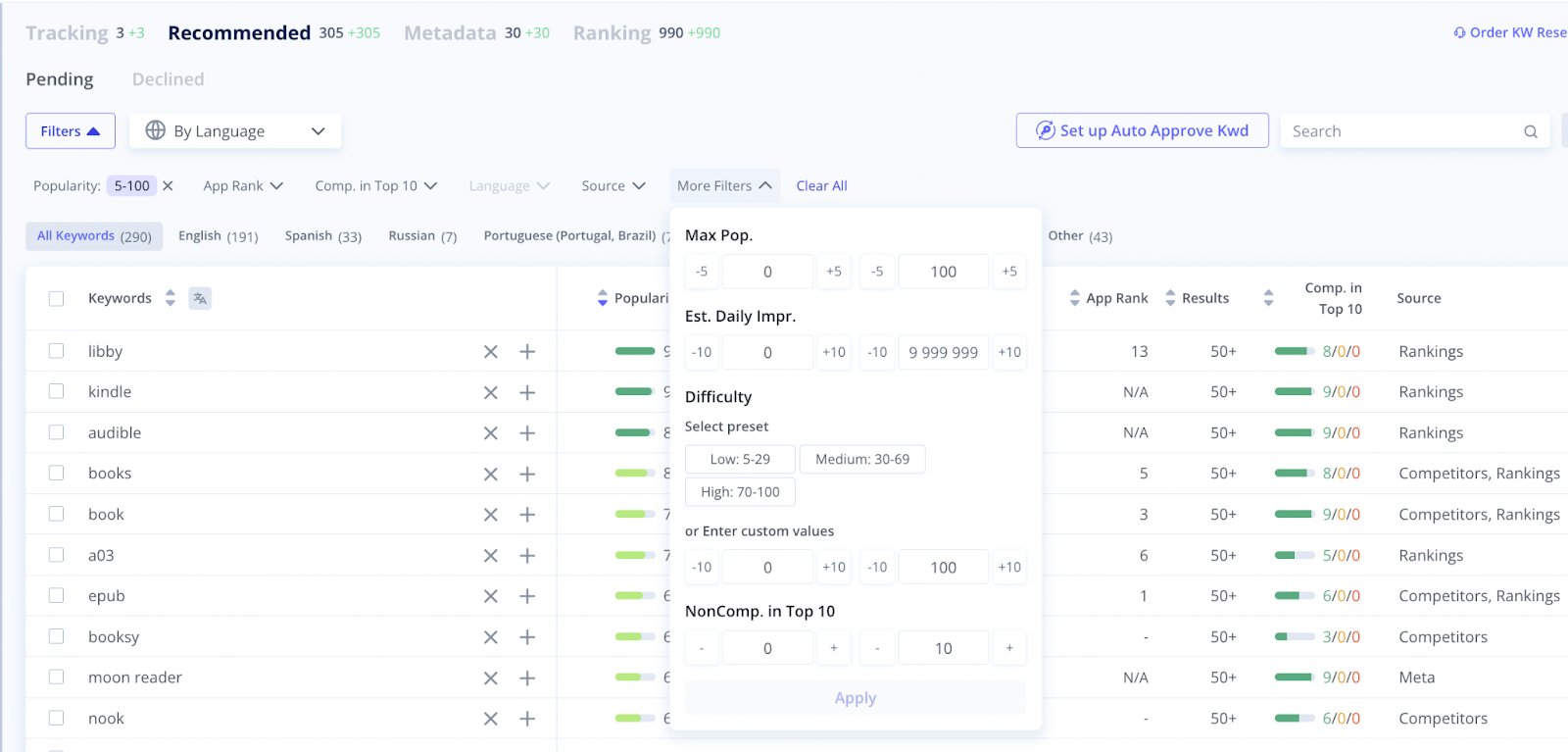
Don't forget to click Apply after adjusting each filter to update the results.
2. Organize Your List of Keywords
To the right of the Filters button, you'll find a dropdown menu that lets you further organize your keyword list. Each option changes the set of buttons displayed above the table and allows you to view and analyze keywords from different perspectives.
You can organize your keywords as follows:
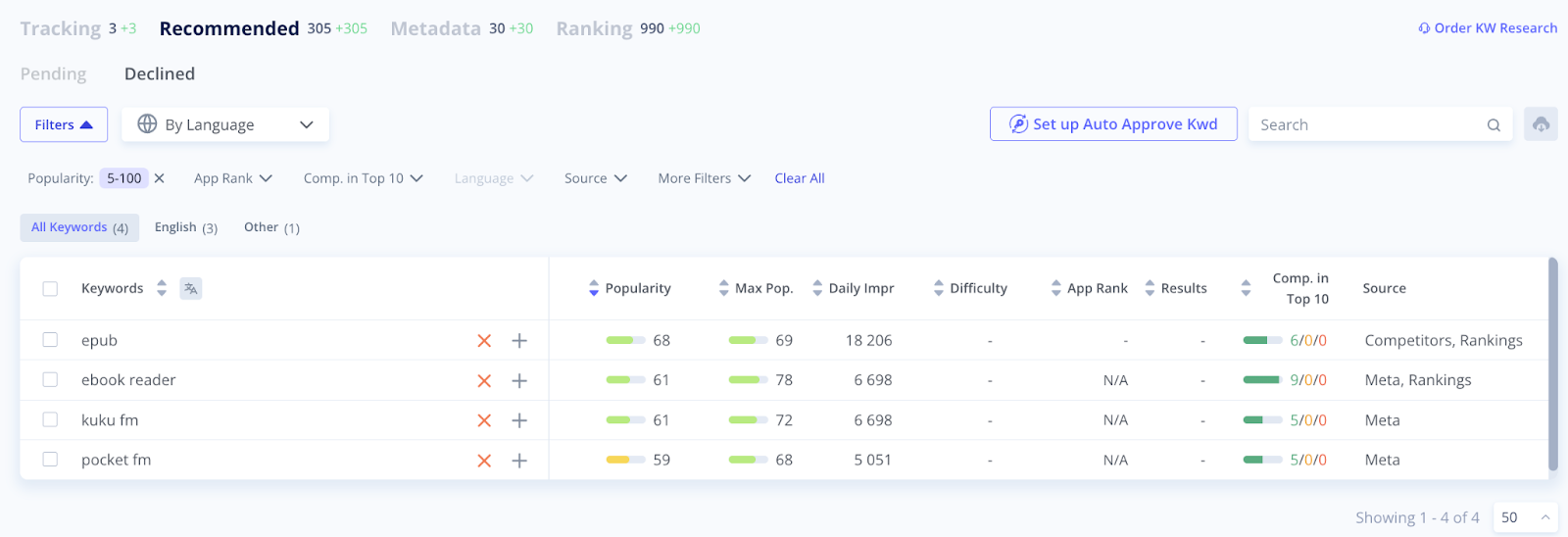
- By Language: Groups keywords based on their language. The digits in brackets show the number of keywords available for each language and help you quickly identify which markets have more keyword opportunities.
- Popularity: Sorts keywords by their popularity level and allows you to focus on high- or low-demand search terms depending on your strategy.
- Rank by Tops: Filters keywords according to your app's ranking position in search results, such as Top 1, Top 2–5, Top 6–10, and so on.
- Rank by Changes: Organizes keywords based on ranking dynamics. The digits in brackets indicate the number of keywords in each category (Up, Down, New, or Out) and help you track performance trends.
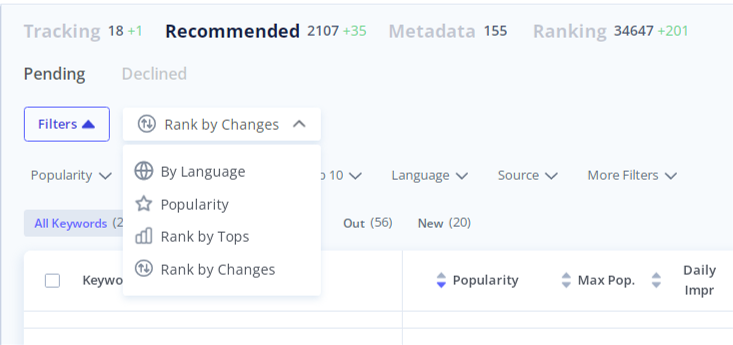
You can also sort keywords using the arrows next to column names (alphabetical order, popularity, impressions, etc.) and choose how many keywords to display per page using the selector at the bottom.
3. Study Keyword Metrics
Now, it's time to analyze your keyword list. The table includes several metrics that help you assess the potential and performance of each keyword:
- Popularity. It shows how often users search for a keyword and reflects your app's ranking position for it. The accompanying chart displays how keyword popularity changes over time, helping you identify rising or declining terms. Click Open Chart to explore detailed keyword dynamics and specify the country and time period for analysis.
- Max Popularity. The column displays the highest recorded popularity value for a keyword. This helps you understand its peak demand and assess whether it's worth targeting in your ASO strategy.
- Daily Impressions. It shows the estimated number of times the selected keyword is viewed each day.
- Difficulty. Here, you can see how hard it is to rank for a keyword. Higher difficulty values indicate stronger competition, while easier keywords can offer faster results and a better chance to appear in top search positions.
- App Rank. This metric displays your app's current ranking position for the selected keyword. A lower number means higher visibility in search results. Green numbers indicate growth, while red numbers show a drop in ranking.
- Results. It shows the total number of apps displayed in the search results for that keyword. Fewer results often mean lower competition, making it easier to gain visibility.
- Competition in Top 10. This column displays a bar chart showing how many of the top 10 apps ranked for the selected keyword are your direct competitors, indirect competitors, or non-competitors. This helps you estimate the competitiveness of each search term.
- Source. It indicates where the keyword was extracted from (e.g., competitors, metadata, related terms, etc.). This information helps you understand the origin and reliability of each keyword.
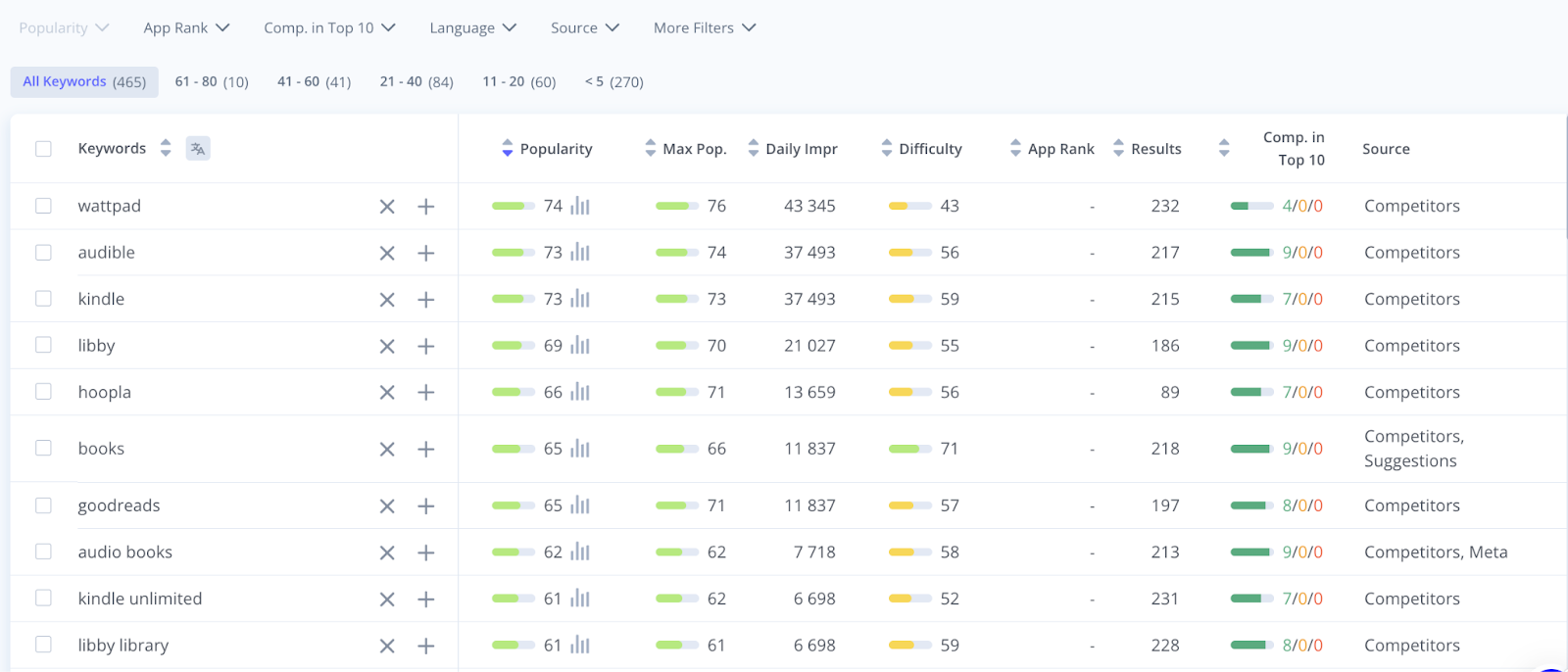
Hovering your cursor over any term in your list reveals additional keyword tools for analysis:
- Google Translate: Translates the selected word into any other language. When you hover over a keyword, a translator icon appears – click it to see the translation.
- Live Search: Shows app rankings by keyword in a pop-up window. Here, you can select a device, mark any app as a competitor or non-competitor, add it to your list of apps, and examine its main metadata.
- Autosuggest: Shows keyword-related queries that app stores suggest when users type their search. You can mark any of these suggestions as relevant and add them to Tracking Keywords for further monitoring.
4. Add or Reject Keywords
Decide whether a keyword is relevant to your app based on the analysis of the metrics described above. Add it to your Tracking Keywords by clicking the plus, or dismiss the recommendation by clicking the cross. If you want to add or reject multiple keywords at once, select the checkboxes next to each term and choose the desired action at the top of the table.
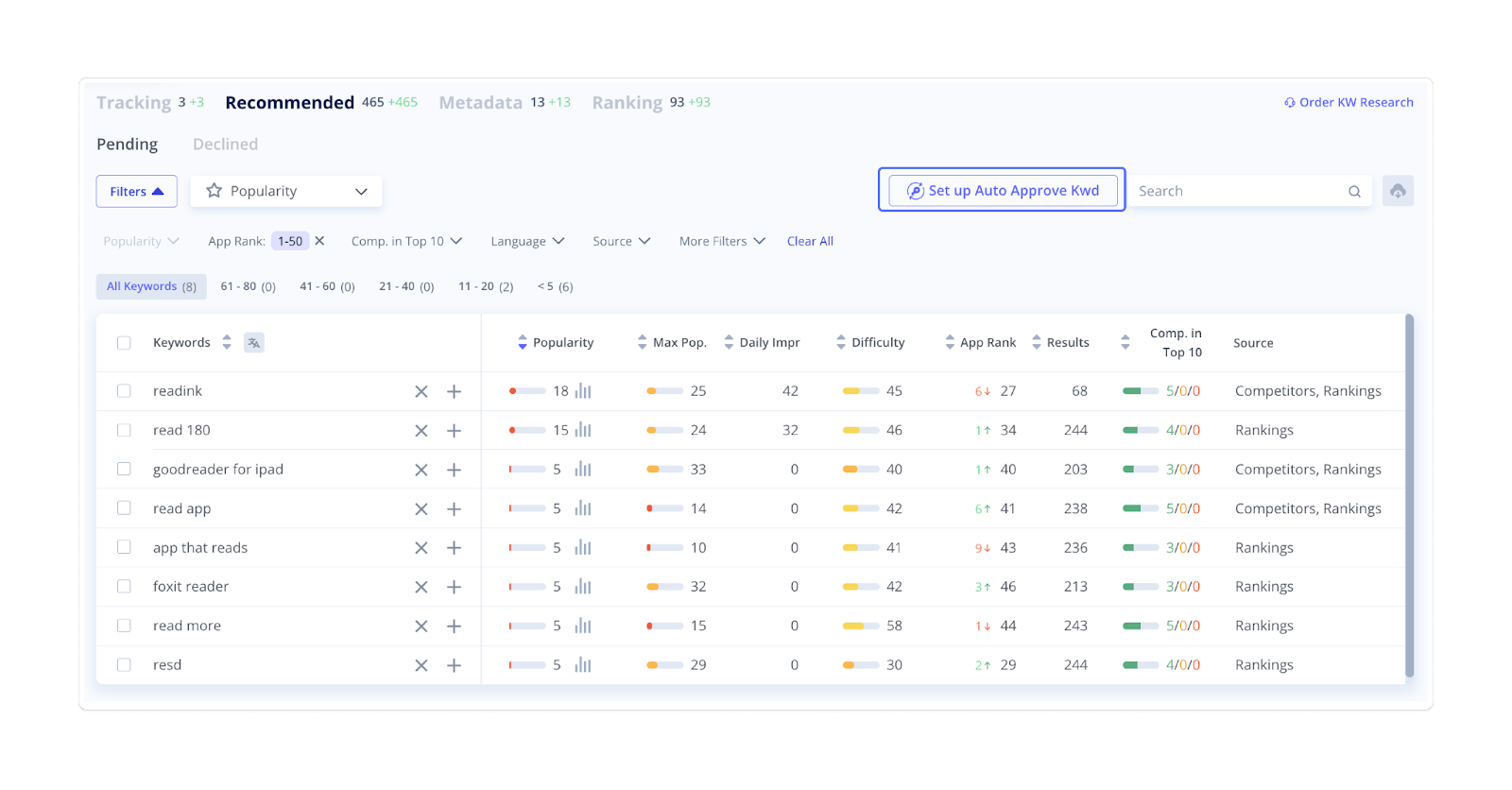
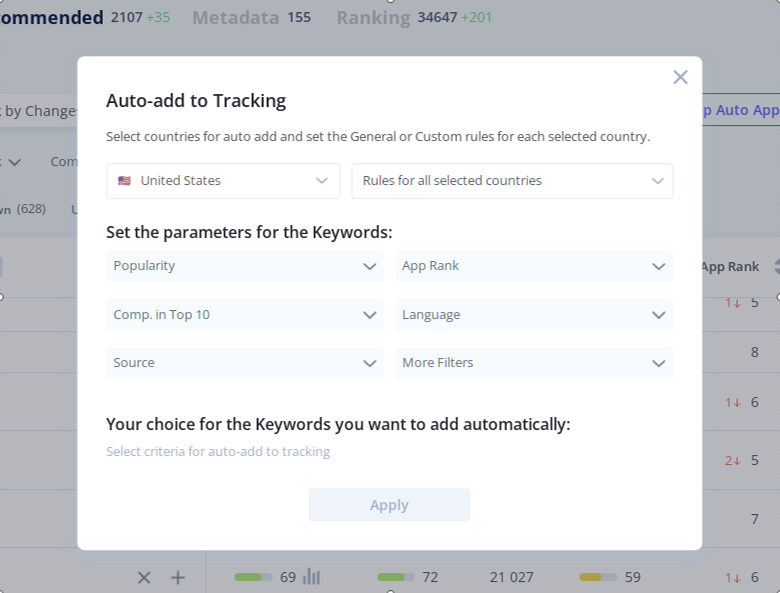
You can also automate this process. Click Set up Auto Approve Kwd, and in the pop-up window that appears, define the parameters for keywords you want to be automatically added to your Tracking list.
5. Review the Declined Tab
This section contains all the keywords you've marked as irrelevant to your app. You can manage them just like pending keywords – using filters and examining the parameters. If you changed your mind, simply click the grey plus to add the word to the Tracker. You can also copy or export declined recommendations to an Excel file for future reference.
Once you've finished working with Recommended Keywords, you’ll have a clearer view of new, effective terms to add to your Tracking Keywords. Be sure to return to this tool from time to time to find new options.
Your next step is to explore Metadata Keywords – popular search terms extracted from your competitors’ titles, subtitles, and descriptions.