
Update Timeline
The Update Timeline tool shows how your and your competitors' apps have evolved over time. It collects upgrade history and optimization changes to help you understand what developers modified in the product or on its app store page.
Why use it: Track how update frequency and ASO adjustments affect app performance and positioning.
Goal: Monitor product evolution and identify optimization patterns to refine your update strategy.
Time: Up to 5 minutes.
1. Select Apps for Analysis
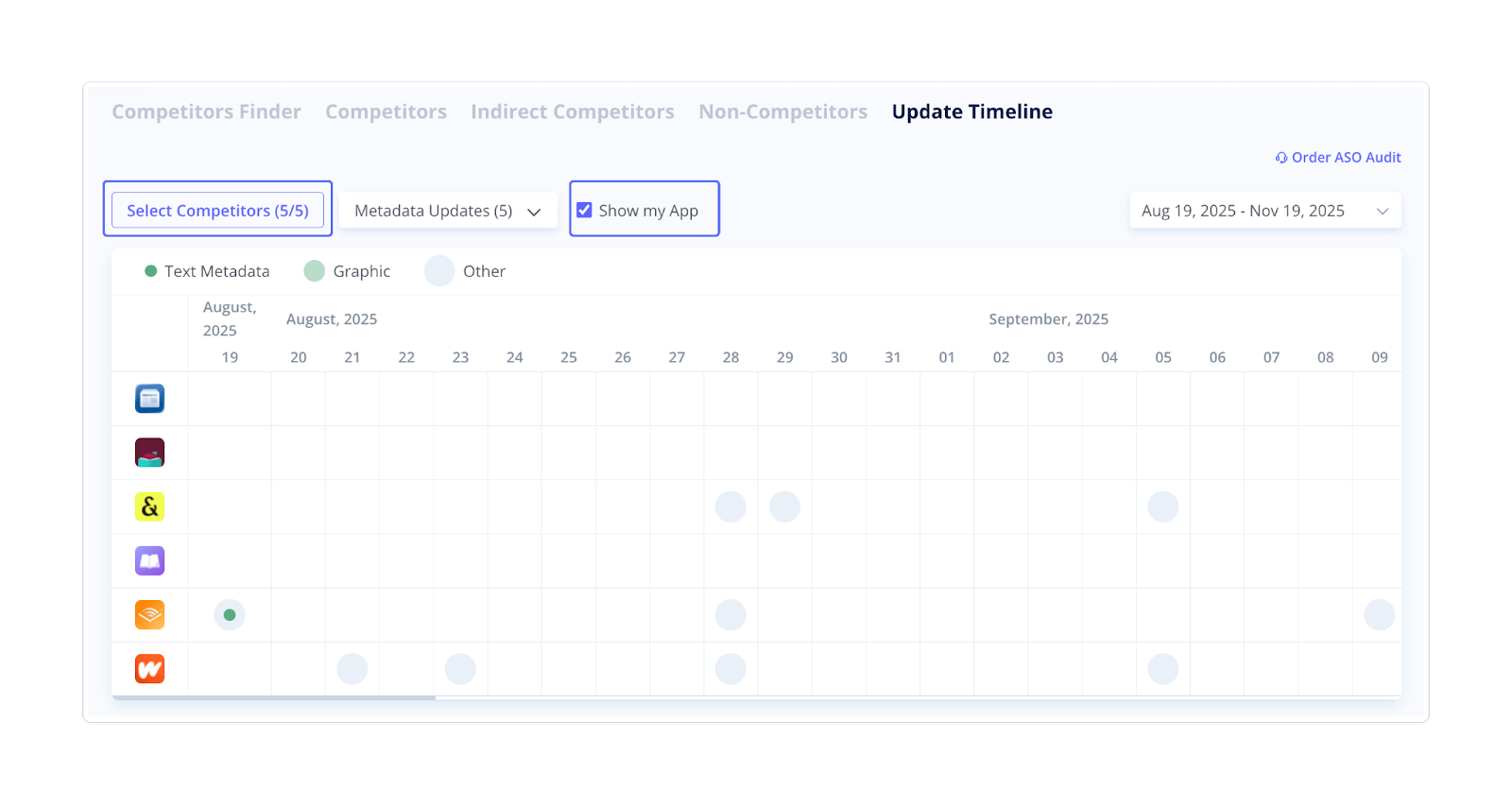
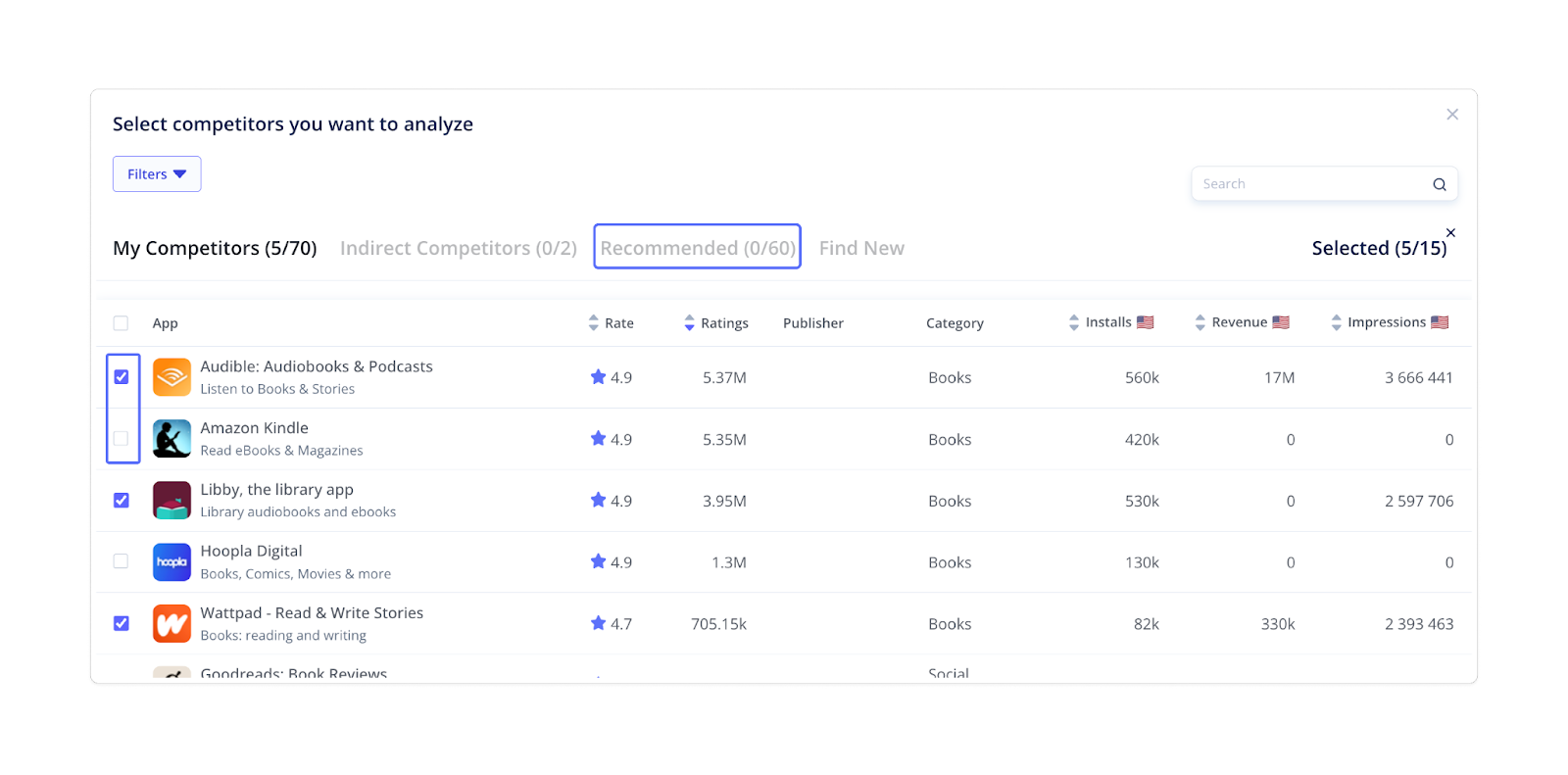
Click Select Competitors to choose the exact apps you want to monitor. If you want to include your own app, tick Show my App.
 2. Adjust Settings
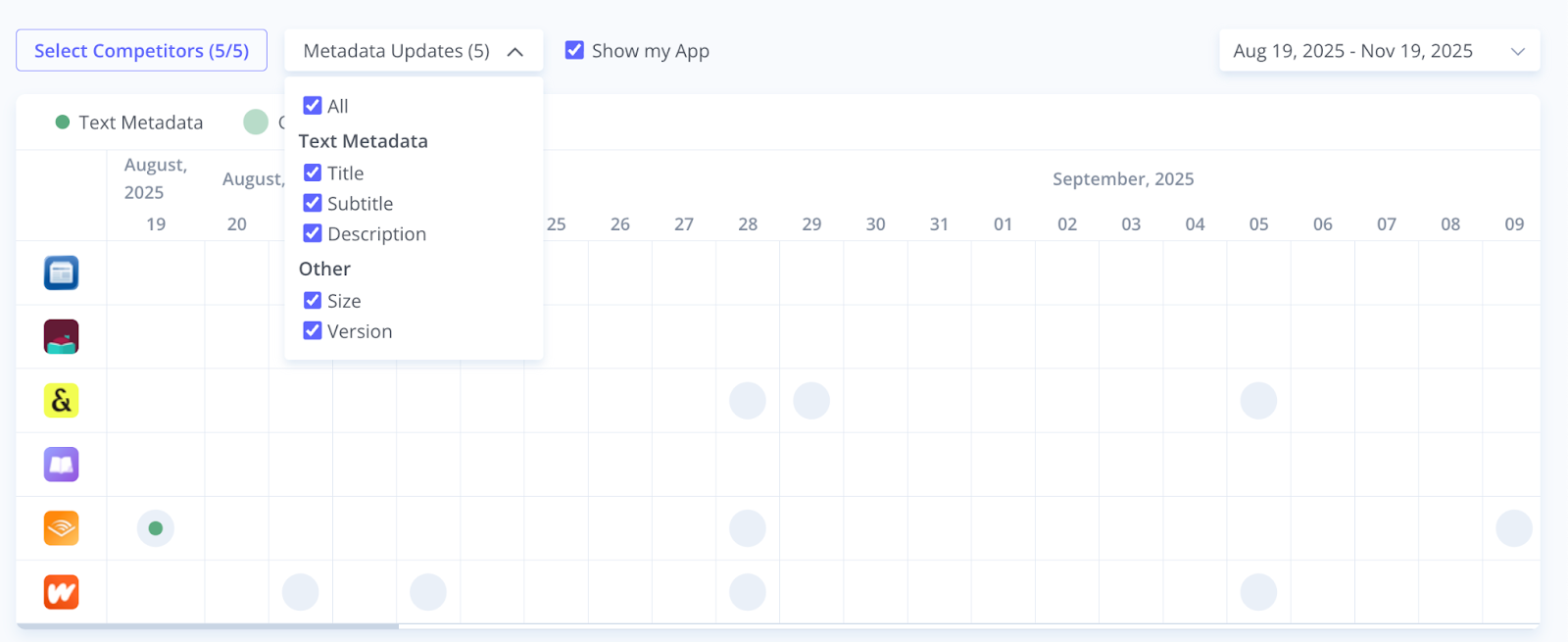
You may use the dropdown list next to Select Competitors to filter the types of changes you want to see.
The tool can show:
- Text metadata (Title, Subtitle, Description)
- App size
- App version
 3. Review the Results
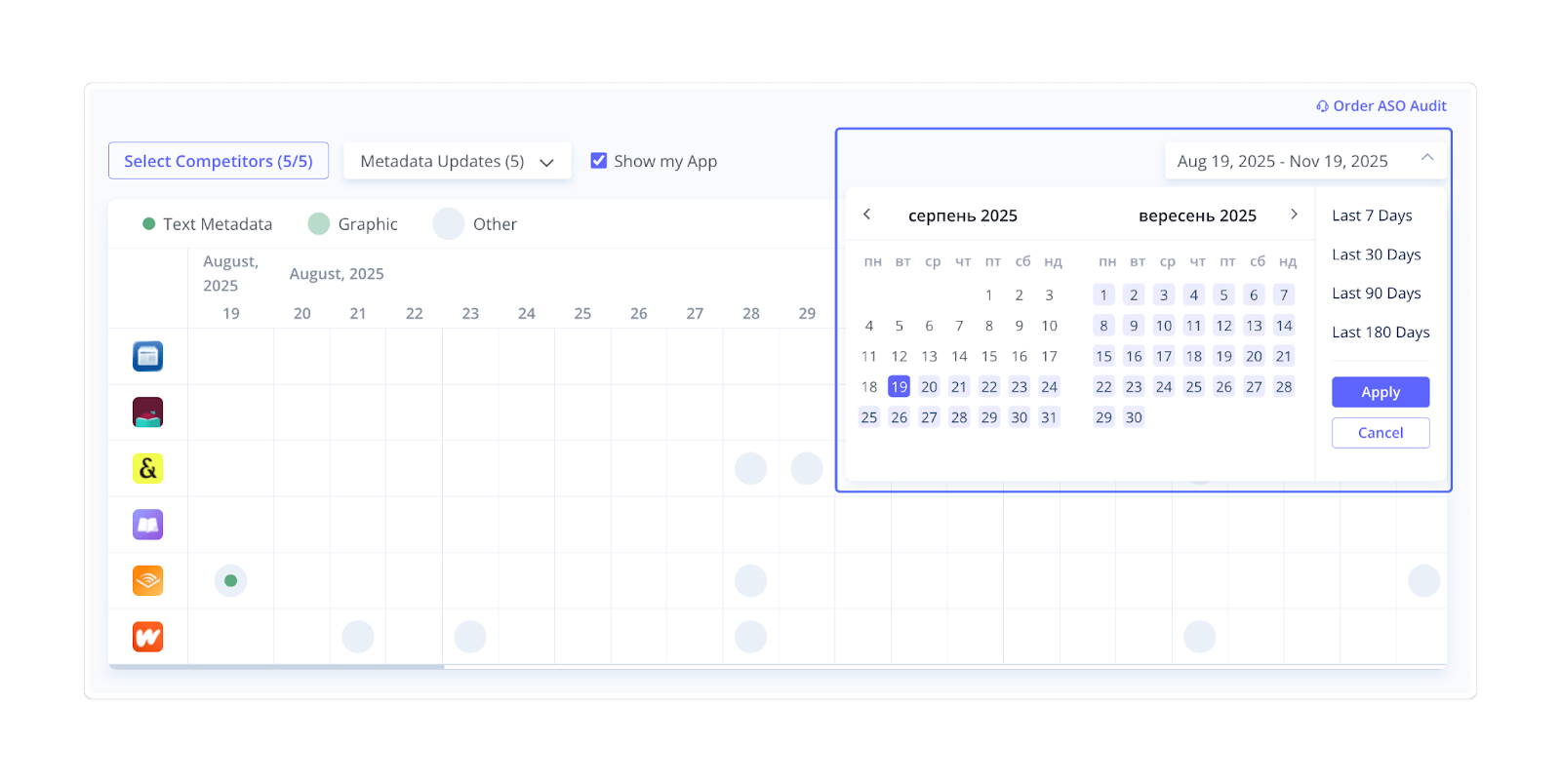
After adjusting settings, you'll see a calendar that visualizes updates day by day. Hover over a calendar square to preview the changes applied on that date.
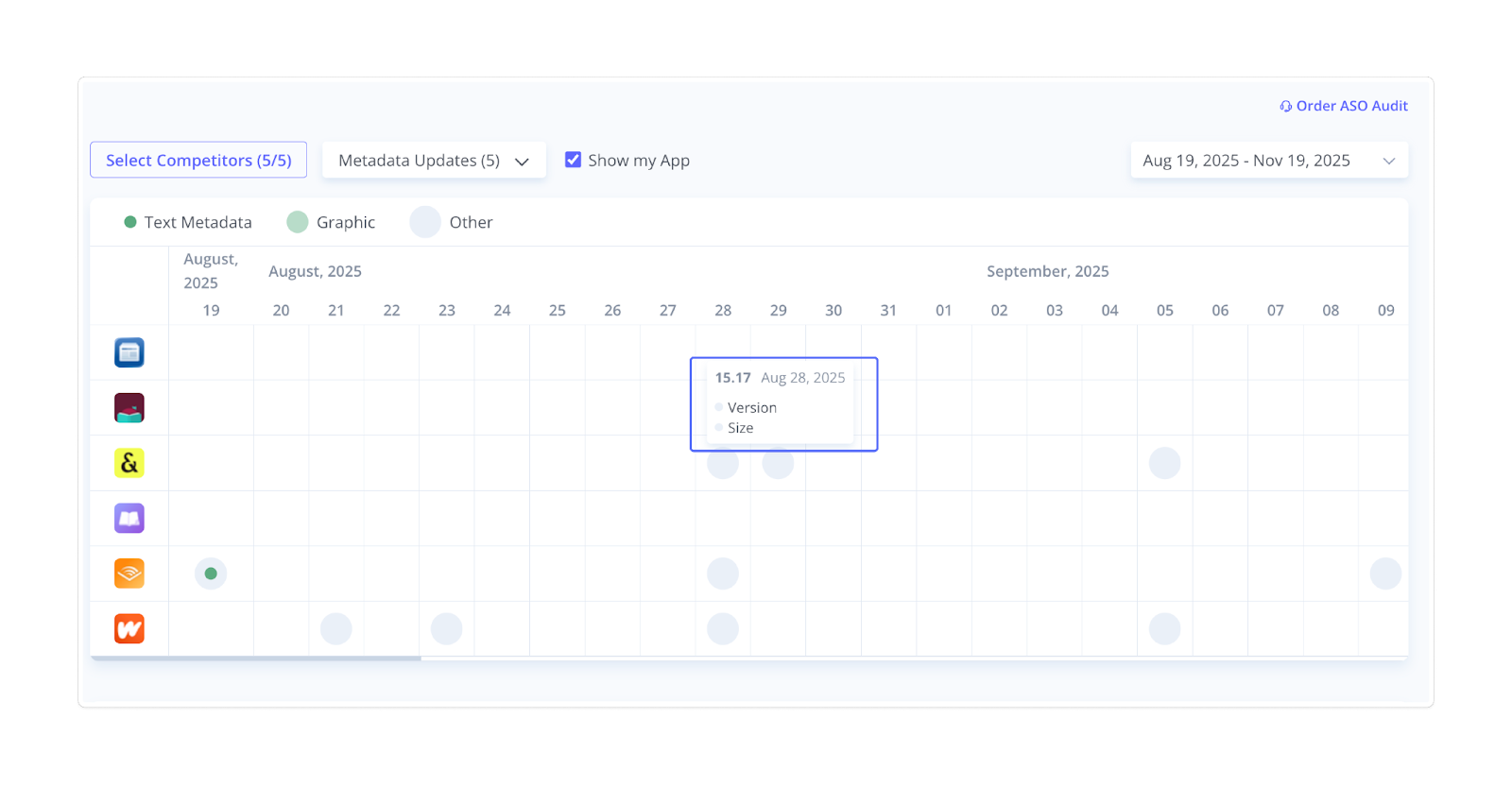
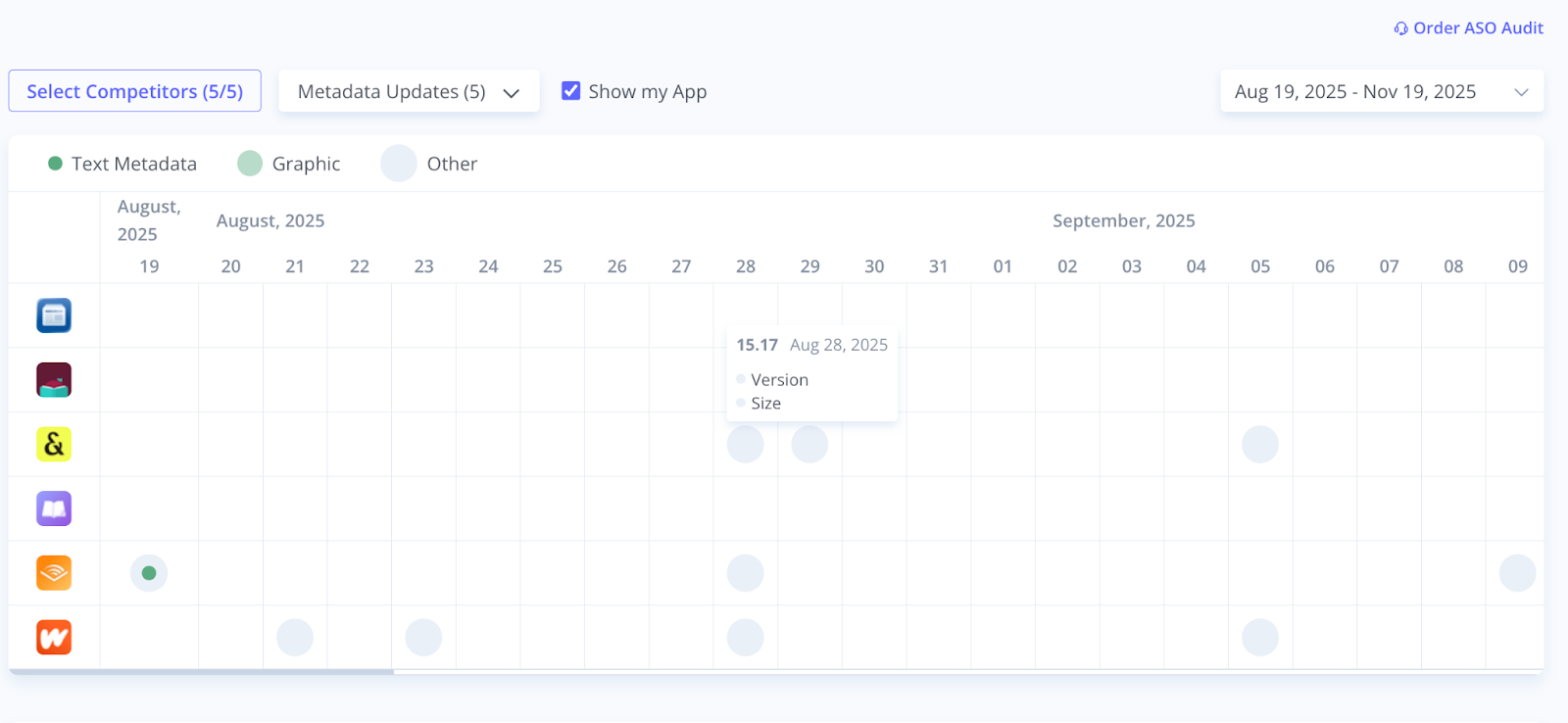
Use the Update Timeline tool to benchmark update strategies in your niche and improve your optimization planning. A clear understanding of update patterns gives you a strategic advantage over competitors.