Ranking
The Ranking tool displays the list of keywords for which a selected app ranks over a chosen period. You can analyze any app (your own or a competitor's) to evaluate how effectively it performs in search results. The tool helps you identify which keywords contribute to higher rankings and which ones are less effective.
Why to use: Get data on how an app ranks for specific keywords.
Goal: Discover which keywords give the chosen app high positions in search.
Time: 10-20 minutes.
Use the Ranking tool to understand how visible an app is in search and how its keyword positions change over time. This information helps you assess the effectiveness of your keyword strategy and make data-driven decisions when optimizing app metadata.
1. Find the App and Set the Period
In the top search bar, start typing the app's name and select it from the dropdown list.
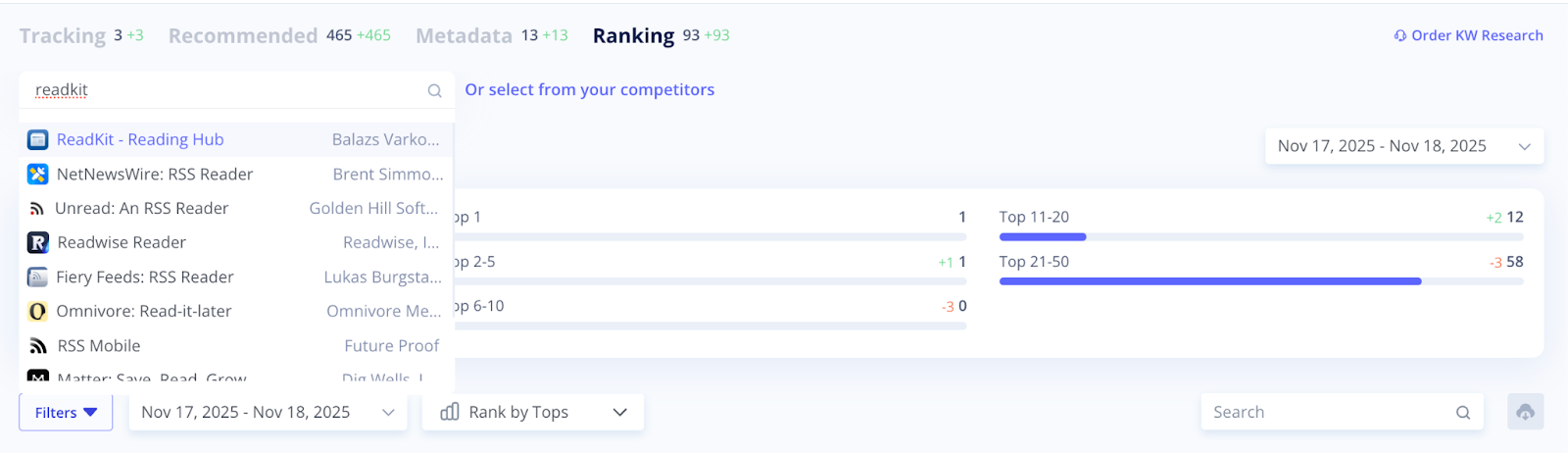
Then, specify the date range in the calendar or choose a preset period and click Apply. Asolytics will collect a list of all keywords the app ranks for during the selected period.
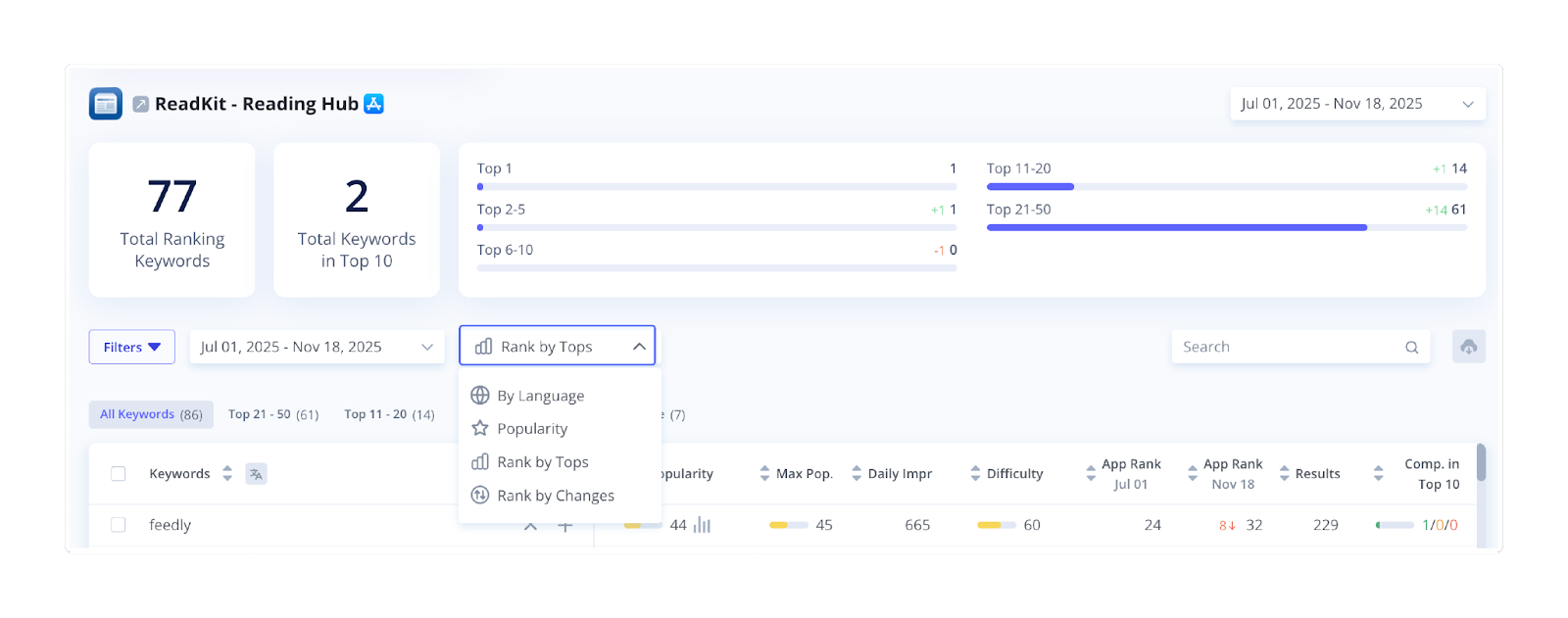
At the top of the page, you’ll see a quick summary that includes:
- Total number of ranking keywords
- Number of keywords placing the app in the Top 10
- Keyword breakdown by ranking groups: the total number of keywords (black), the number of added ones (green), and the number of words dropped out (red)

2. Select a Category
All keywords found by Asolytics algorithms for the selected app and period are collected in the All Keywords tab.
If you want to focus on a specific keyword group, use the drop-down menu above the table to choose a parameter. Category tabs will appear above the table, each showing the number of keywords it contains.
Available parameters include:
- Rank by Changes – view keywords by status: Down, Out, Up, or New.
- By Language – focus on keywords in a specific language.
- Popularity – group keywords based on their popularity level.
- Rank by Tops – organize keywords according to the analyzed app's position in the search results.
3. Filter and Organize Your Keywords
To organize your keyword list more precisely, use the available filters. They help you focus on the most relevant keywords and remove unnecessary ones.
You can filter keywords by the following parameters:
- Popularity – shows how often users search for a particular keyword.
- App Rank – displays the app’s current position for the keyword.
- Competition in Top 10 – indicates how many competitors rank in the top 10 results for this keyword.
- Language – allows you to view keywords in specific languages only.
- Hide Keywords – lets you hide Tracking or Declined keywords from the list.
Additional filters include:
- Max Popularity – limits the list to keywords with a maximum popularity value.
- Estimated Daily Impressions – shows how often users interact with the keyword.
- Difficulty – reflects how hard it is to rank for this keyword.
- Non-Competitors in Top 10 – displays how many non-competitor apps appear among the top 10 results.
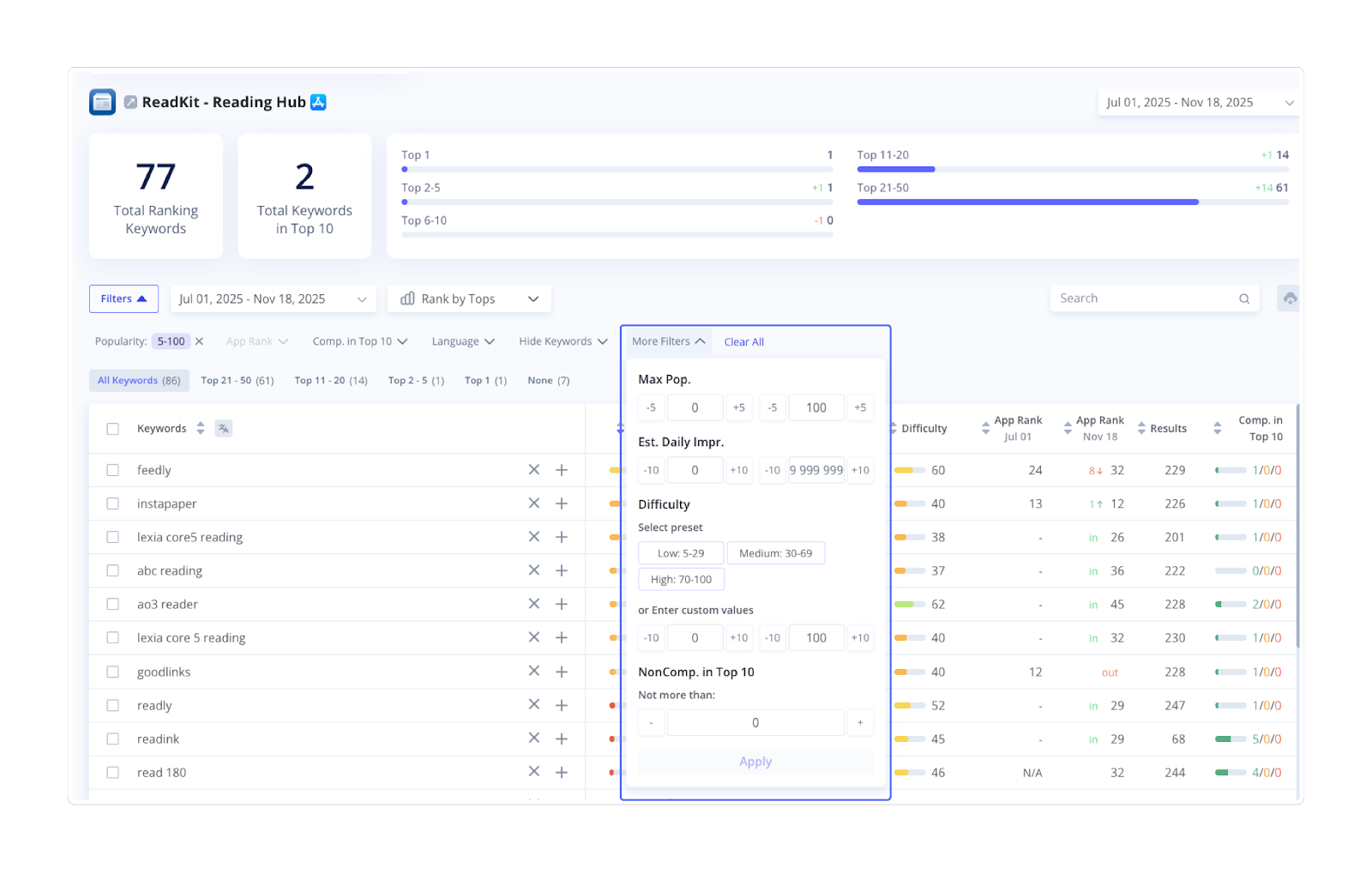
You can also sort the table alphabetically or by metrics such as popularity, impressions, or rank. Click the up or down arrows beside each column header to adjust sorting.
4. Analyze Keyword Performance
Now, it's time to analyze your keywords.
Most columns in the table correspond to the filters you applied in the previous step. However, there is also a Results column that shows the total number of apps ranking for each keyword in the app store search results.
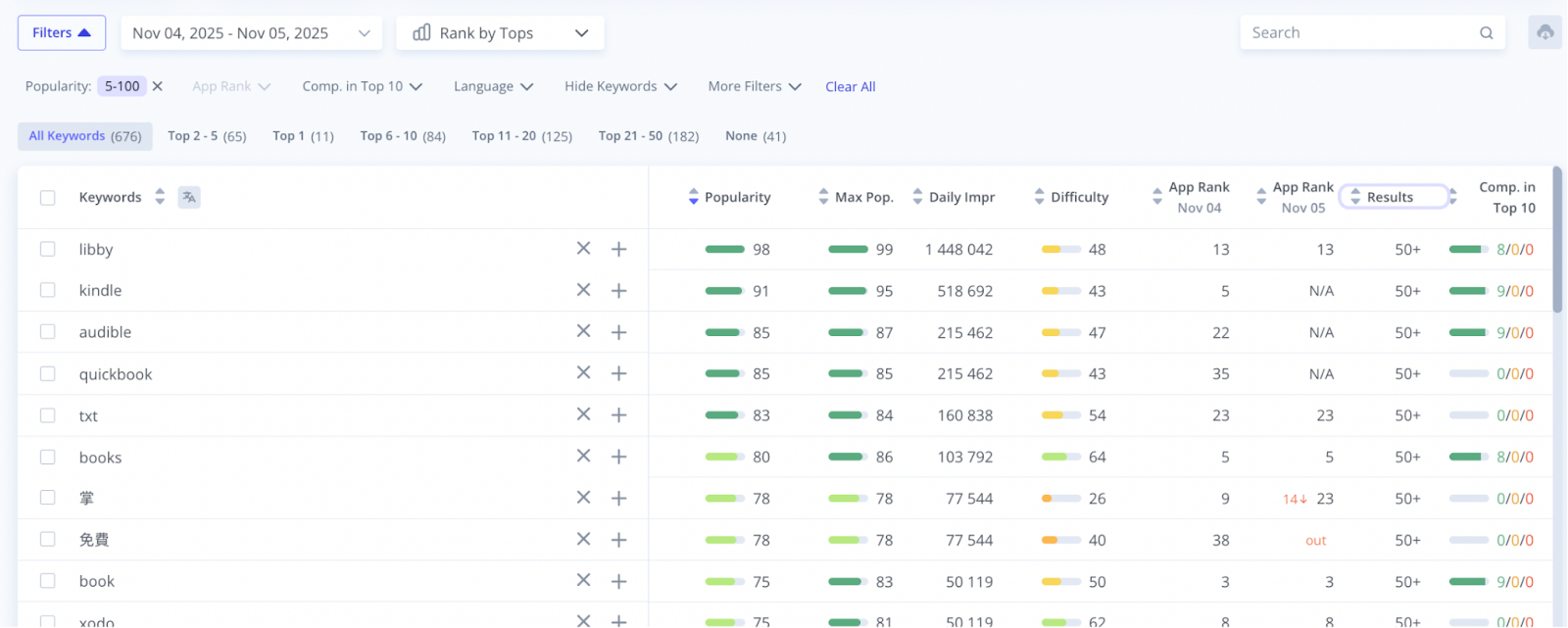
Within the table, several additional tools are available:
- Live Search provides you with a list of apps that are found for a particular keyword.
- Autosuggest shows what suggestions users get when typing a keyword in the search bar.
- Translate instantly translates any keyword into English.
5. Add Keywords to the Tracking Keywords
If you discover useful keyword ideas, add them to the Tracking Keyword tool.
You can:
- Click "+" next to an individual keyword to add it to your list.
- Select multiple keywords using checkboxes and click "+" at the top of the table for bulk adding.
- Export the entire list.
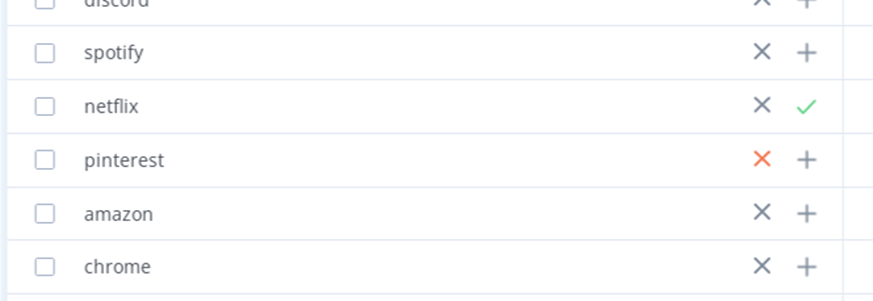
The keywords added to your Tracker are marked with a green checkmark, and the keywords you declined are marked with a red cross.
Use all Asolytics keyword tools together to build a relevant and effective collection of tracked keywords. Monitor their performance in real time and optimize your app's text assets using the most successful terms. Repeat this process from time to time to ensure that the keywords you use are still relevant to your goals.