
Visual Analysis
The Visual Analysis tool displays the screenshots and icons of the apps you've marked as your direct competitors. Here, you can review and compare competitor visuals to understand creative trends and see how top apps attract user attention.
Why to use: Analyze competitor visuals to identify creative decisions that improve conversion rates.
Goal: Examine competitor creatives.
Time: Up to 5 minutes.
1. Select Competitors You Want to Analyze
By default, the tool displays all apps you've marked as direct competitors. If you want to narrow your focus, use the selection button to choose only the apps you're currently interested in. You can also add more competitors from the Recommended section to broaden your comparison. 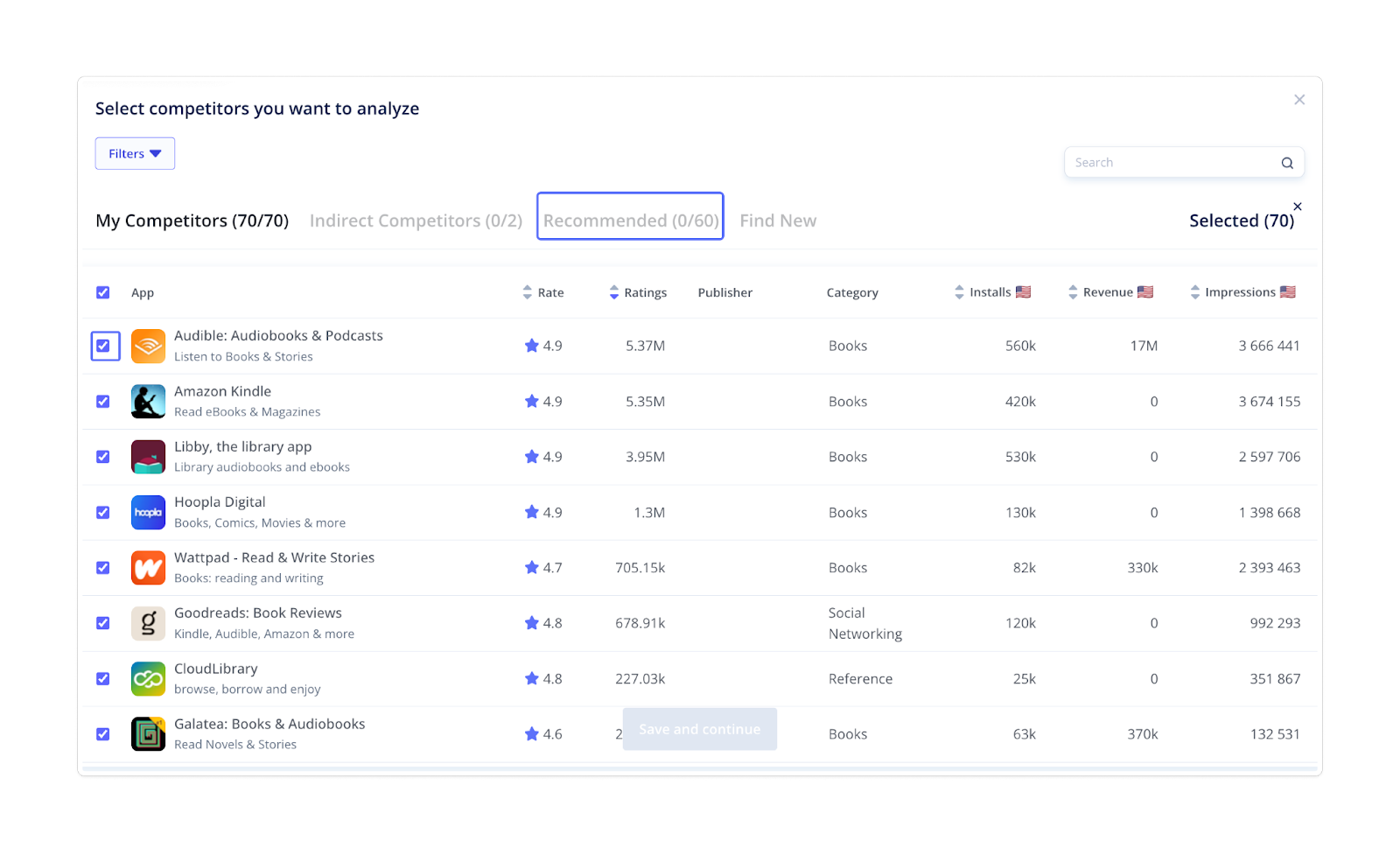 2. Choose Language
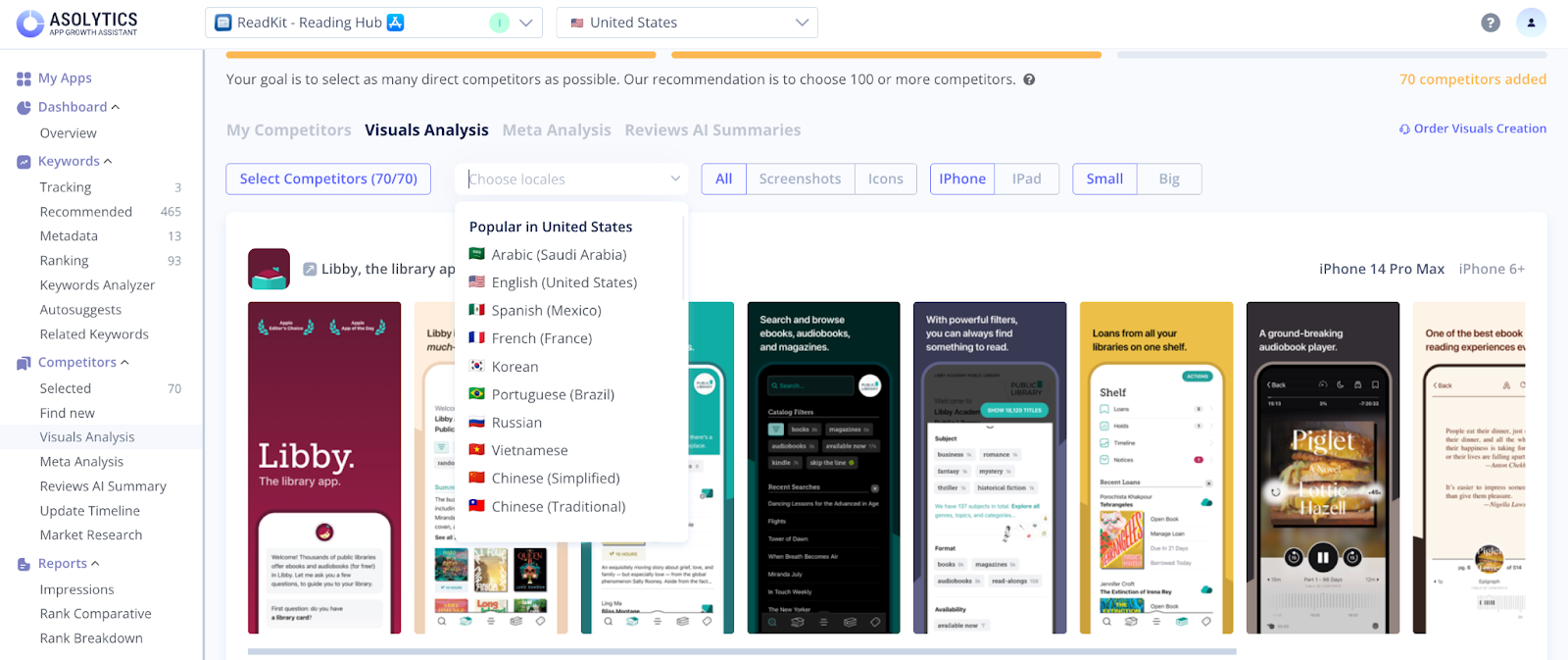
You can use the language dropdown to check whether competitors have localized visuals for the market you're interested in. This helps you evaluate cultural adaptation and regional messaging strategies.
 3. Analyze Screenshots and Icons
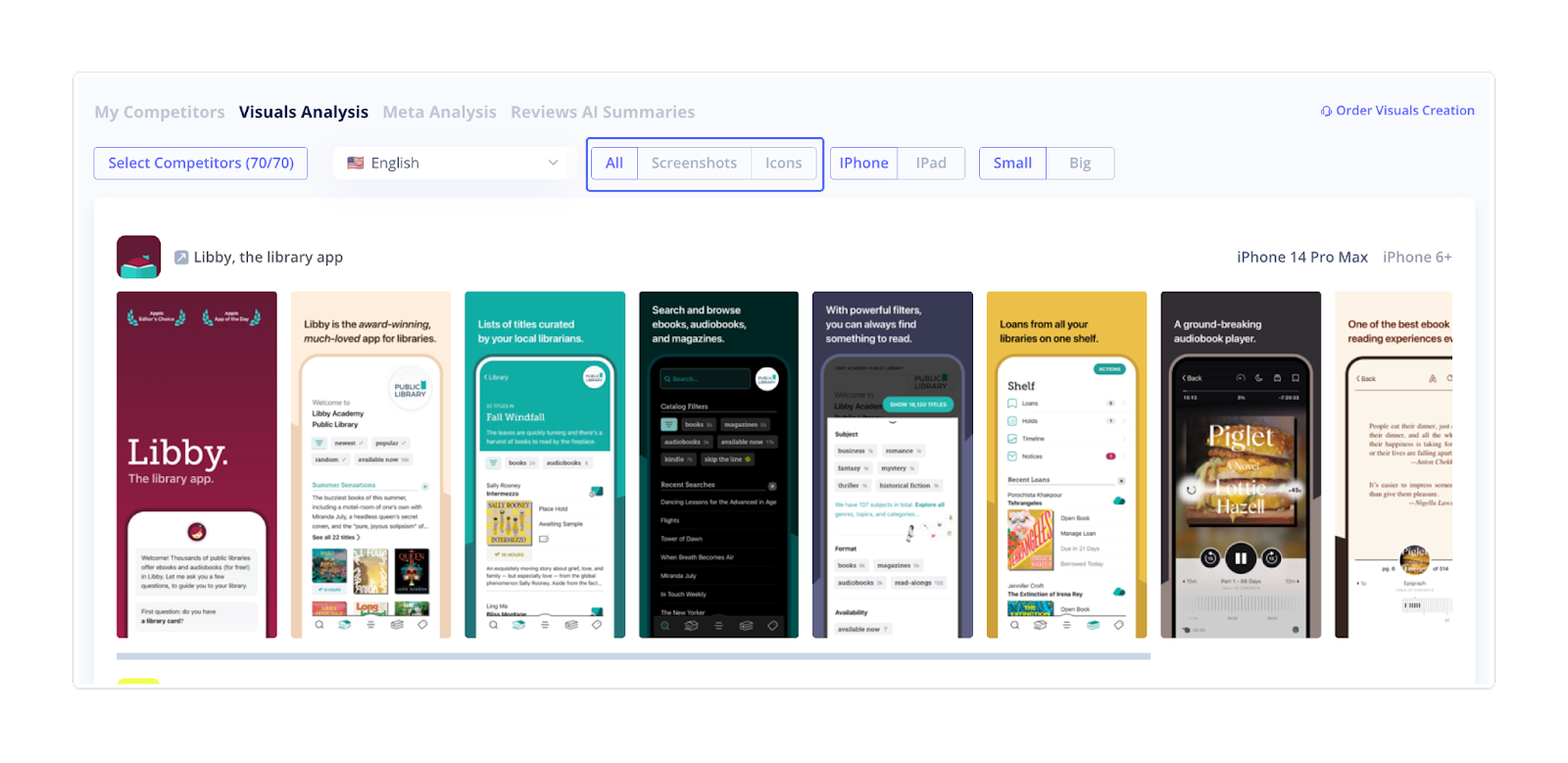
The tool allows you to analyze screenshots and icons together to see how competitors structure their creative sets. You can also review them separately if you want to focus on one specific type.
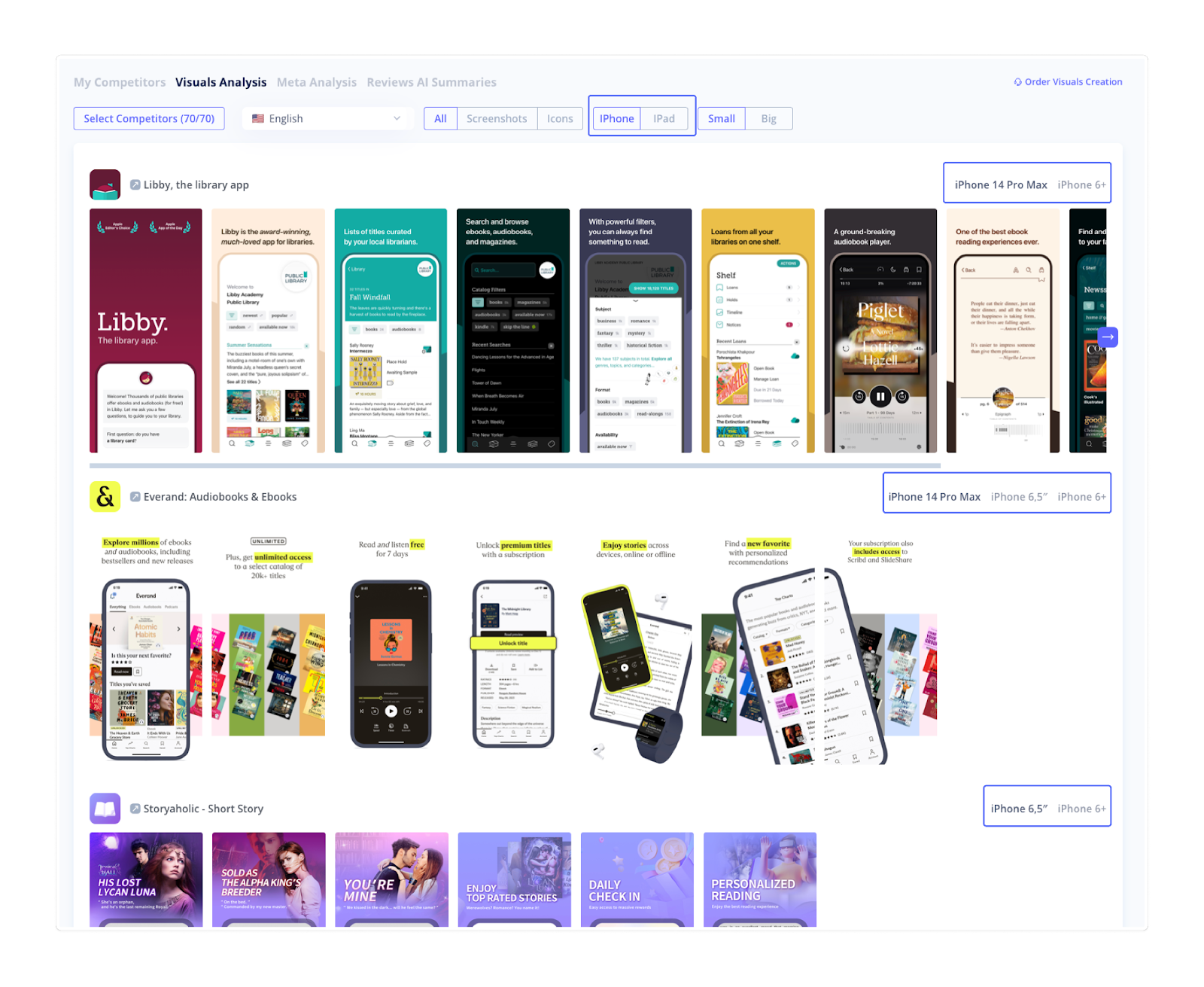
Use the information from the Visual Analysis tool to improve your design decisions and align your creatives with user expectations. Doing so will help your product stand out in an increasingly crowded marketplace.